Customizable chapters and timestamps make work videos easier to navigate and more efficient to watch. Chapters help viewers jump directly to the most relevant section within a video, saving valuable time on long recordings like training and troubleshooting videos, meeting recordings, and onboarding videos. Each chapter can also be renamed, retimed, or shared on its own, so one recording can serve several teams.
In this guide, explore how to add AI or manual chapters to videos for work in Clipchamp (opens in a new tab), ways teams put chapters to use, and how to edit, delete, or share a single chapter.
How to add chapters to videos for work
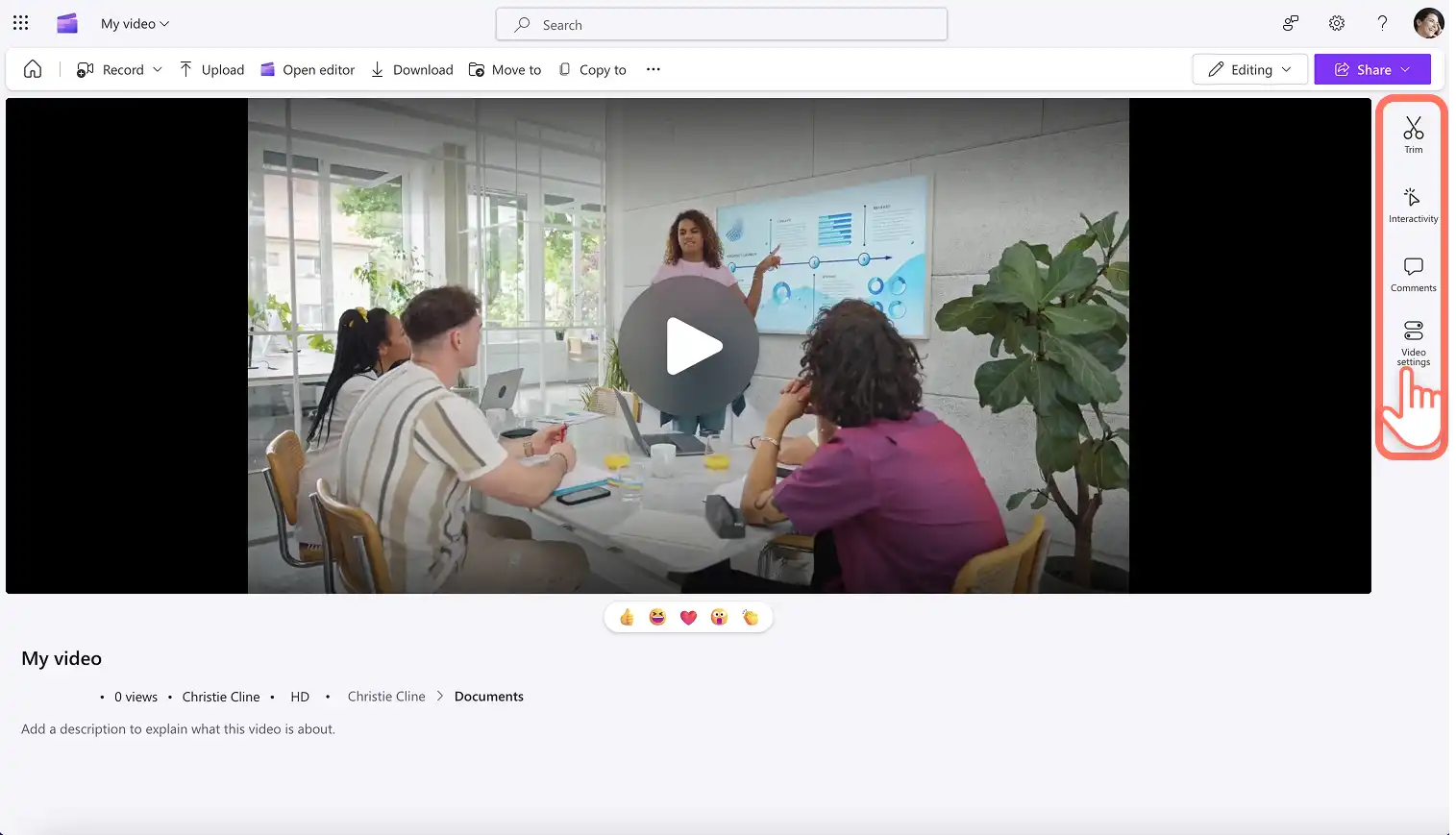
Step 1. View the video in Clipchamp
Open a video in Clipchamp video player, then scroll through the toolbar to locate and open the video settings tab.
Note: all viewers with editing access can see the video settings panel. Chapters will only be available for videos with audio.
Step 2. Turn on AI transcript and captions
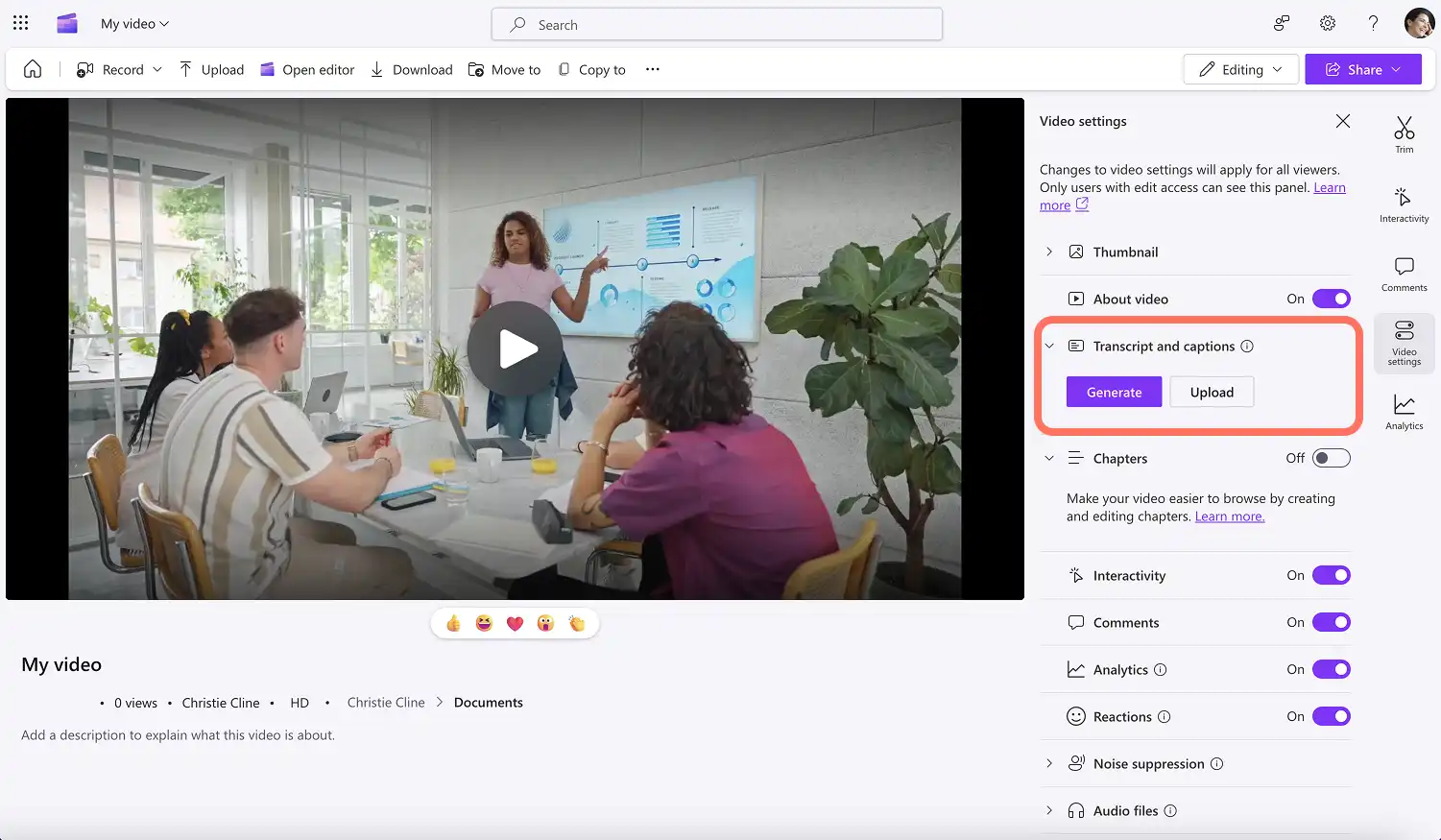
Before adding chapters to video, start by generating or uploading an English video transcript into the transcript and captions tab.
Click on the drop down arrow on the transcript and captions tab, then click on the generate button to start creating a transcript with AI. If there's already a video transcript, click on the upload button to from device.
Step 3. Add AI chapters or manual chapters to video
To add chapters to videos, click on the chapters tab then click on the chapters toggle to turn it on. To start generating a video chapter, click on the generate button.
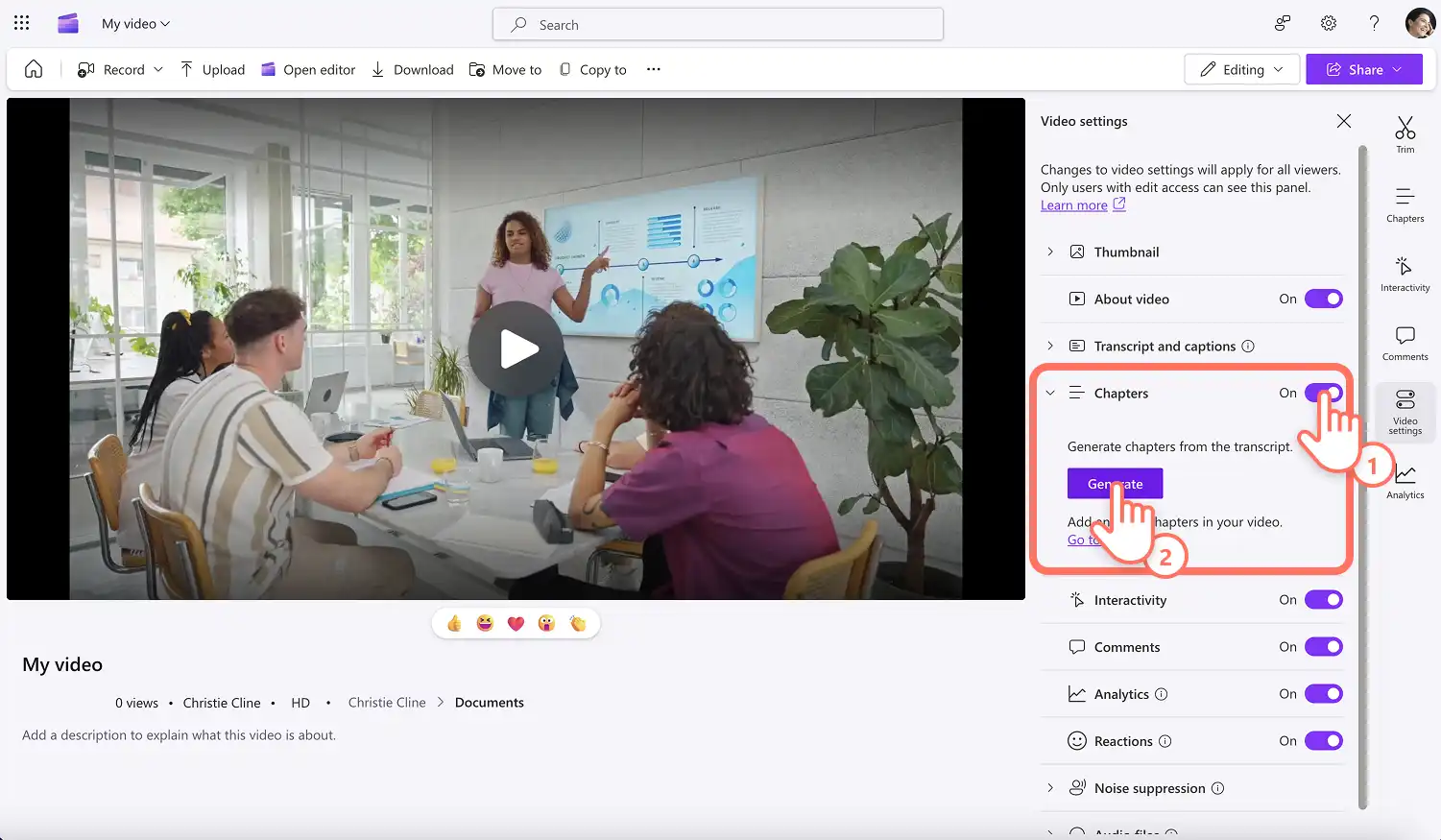
Next, click on the go to chapters button to open the full chapters tab.
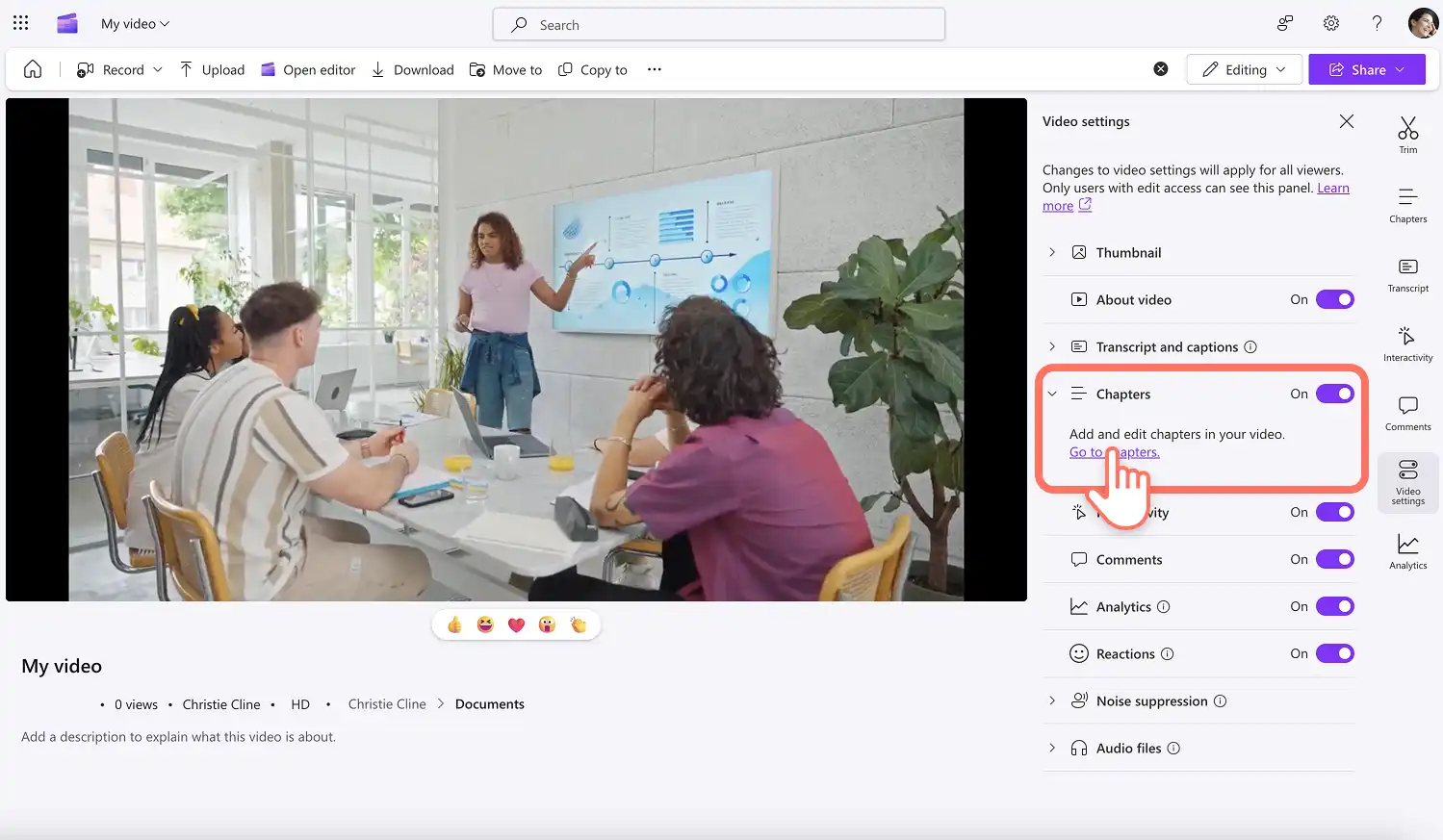
AI will automatically generate chapters for the video based on the video data. Edit or rename the chapters within the tab. If the AI generated chapters aren't accurate, manually add video chapters by clicking on the new chapter button.
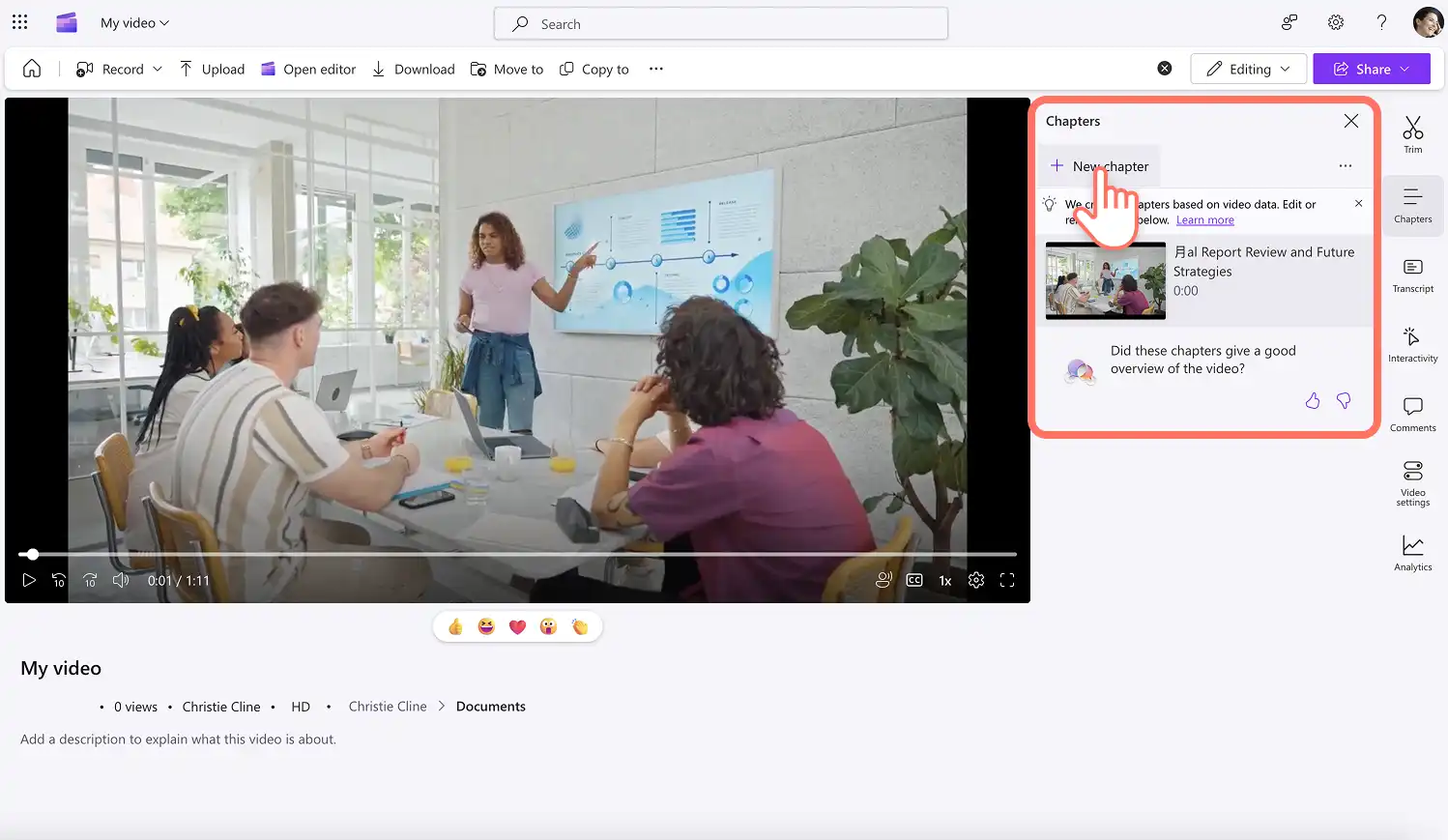
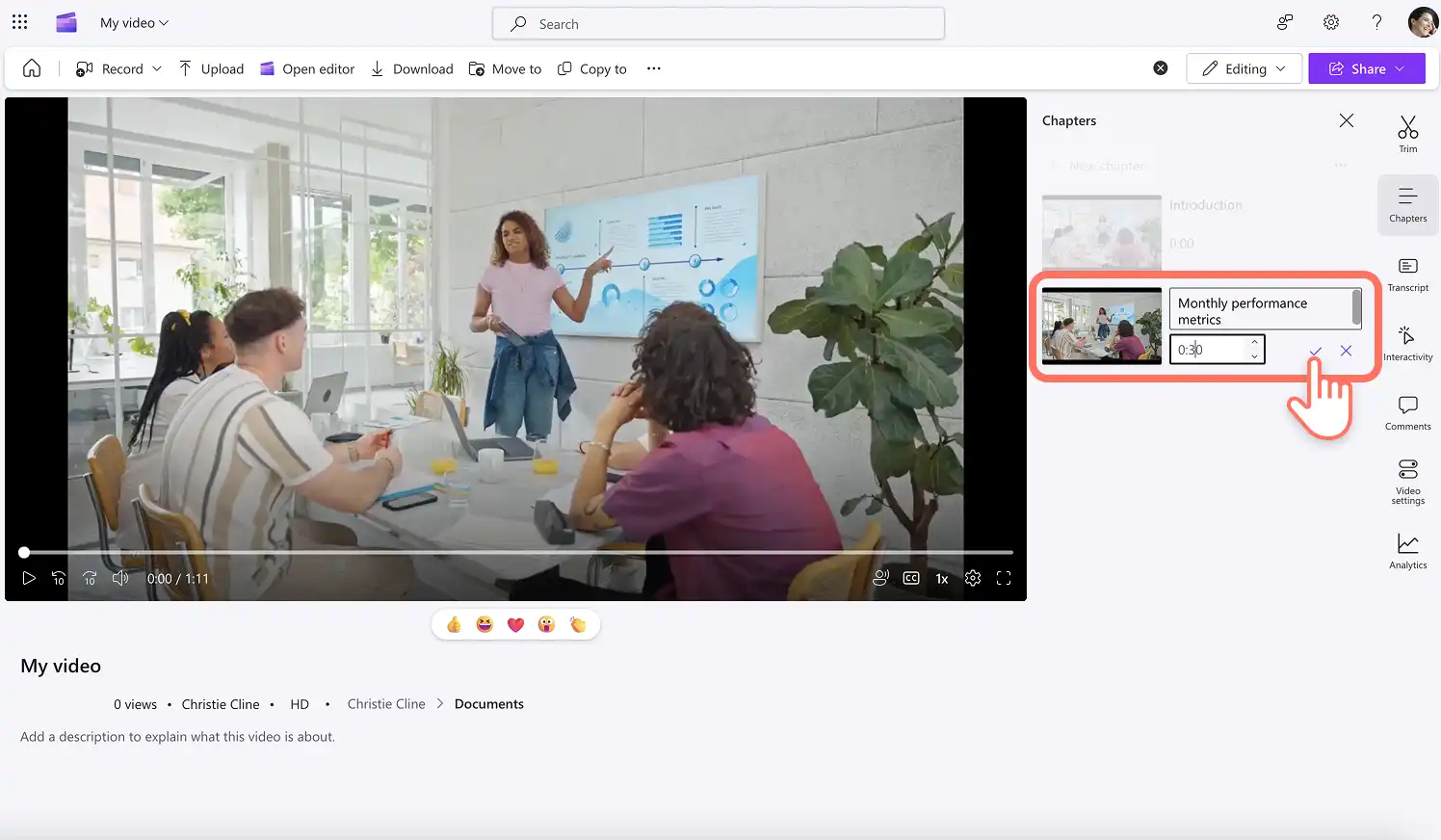
Here, type in a title for the chapter, as well as selecting a specific timestamp of where the chapter begins. When it's ready to save the video chapter, click on the tick button. Repeat this step to add more video chapters.
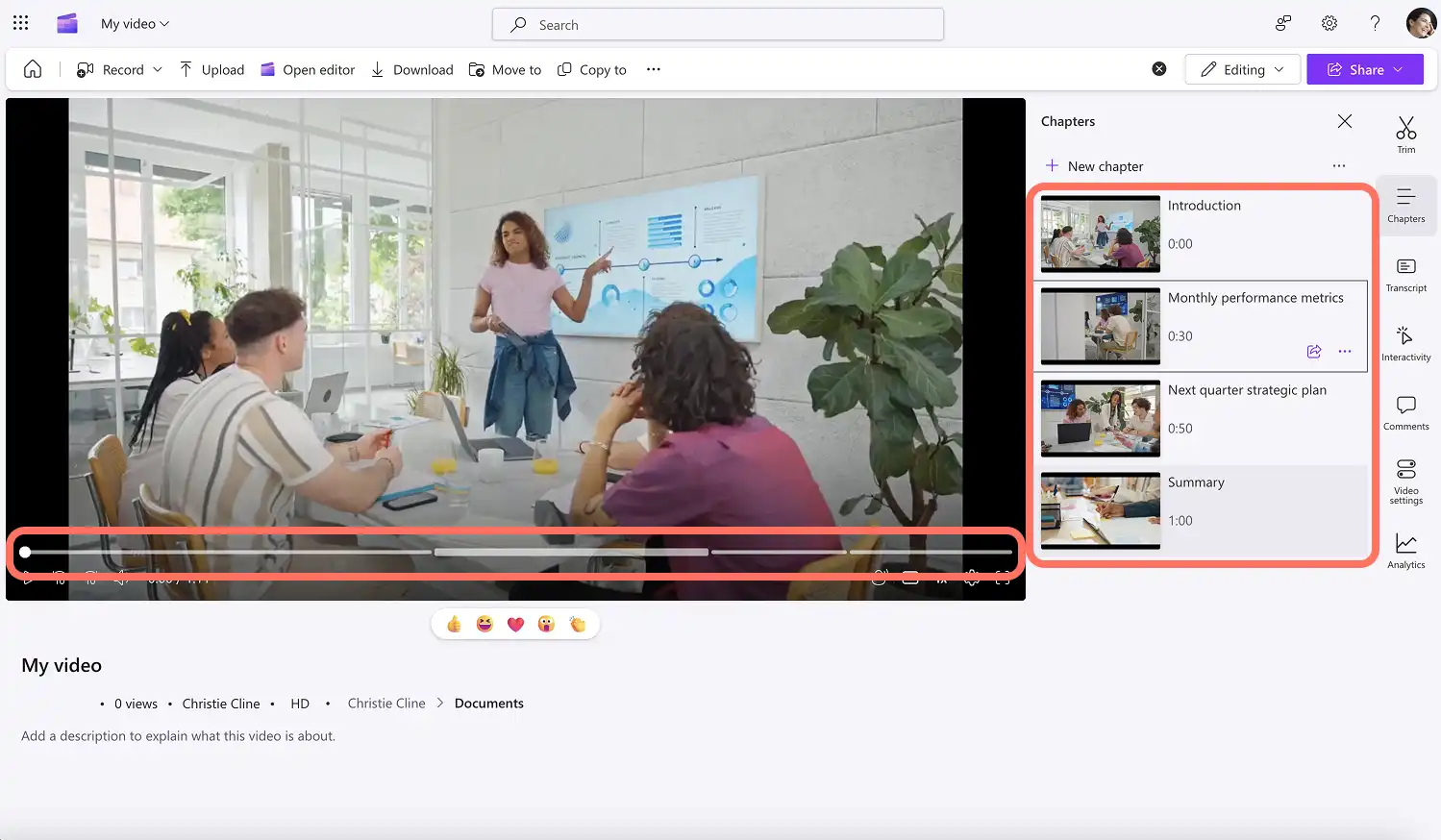
The video will now appear with chapters so viewers can easily jump to unique video sections.
Step 4. Edit, delete, or share video chapters
To edit or delete a chapter, click on the three dots button (more options) on the specific chapter and either click edit or delete.
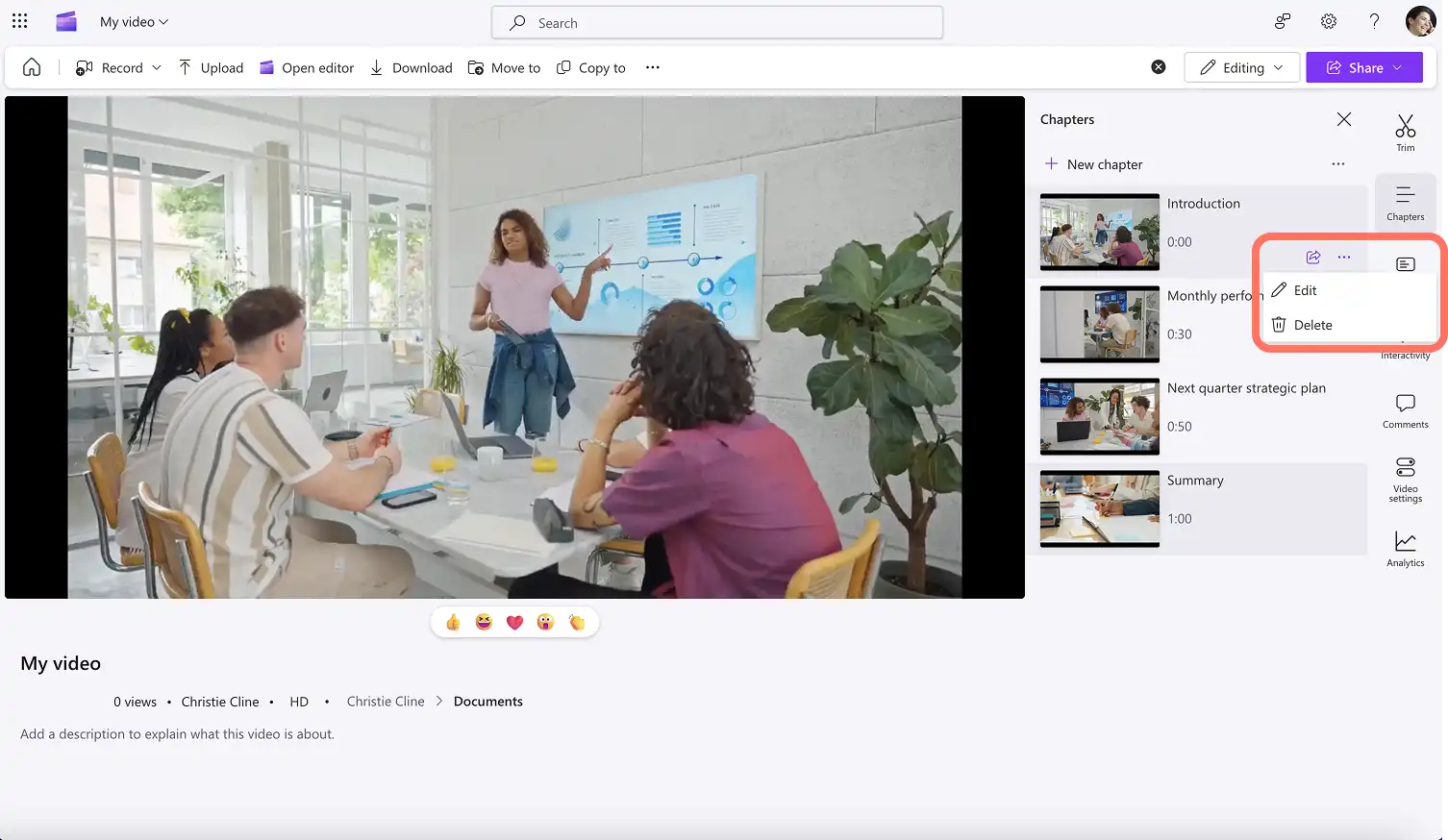
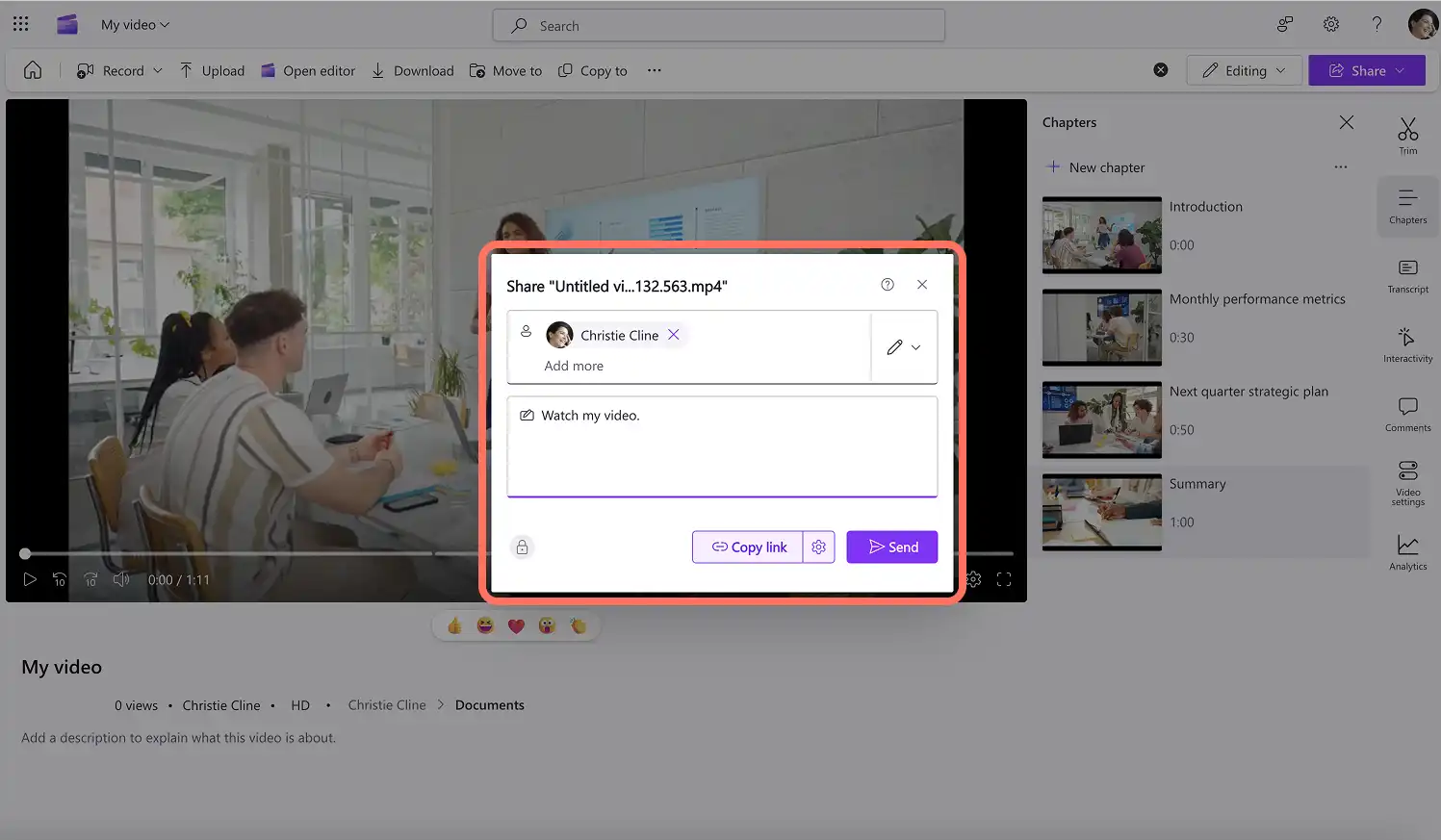
To share a specific chapter, click on the share chapter button. Next, type in a name, group, or email address and add a message if desired. Continue to add access options like editing, viewing, or downloading. Easily copy the shareable link to send to any team.
Smart ways to use chapters in work videos
Employee onboarding videos: chapters let new employees jump to payroll, security, or team introductions on demand. Breaking an employee onboarding video into labeled sections also makes it easy to update in sections in the future.
Training videos: a long training video becomes a reference library once each procedure sits under its own chapter. Staff returning to a training video months later can find the exact step they need instead of scrubbing the timeline.
Product demo videos: potential buyers watching a demo video care about different features, so chapters let each viewer skip to the part that matters to their team. Sales teams can share one timestamped link rather than creating a separate video for every prospect.
Customer testimonial videos: marketing teams can point a prospect at the testimonial from their own industry without asking viewers to watch the full Reel.
Corporate explainer videos: chapters break a dense corporate explainer video into segments that map to the questions an audience actually has. Each section can then be reused on its own in a follow-up email or an intranet page.
Sales enablement videos: chapters turn a long sales pitch recording into a menu of objections, pricing, and case studies. New representatives can revisit one segment of a sales video before a call instead of rewatching the whole session.
Company meeting and all-hands recordings: colleagues who missed the meeting usually need one agenda item, not the full hour. Pairing chapters with AI transcript based editing makes a recording searchable and skimmable.
Internal announcement videos: chapters keep a company-wide update watchable when it covers several unrelated topics. A video embedded in Outlook can then send each department straight to the section written for them.
Brand and culture videos: Recruiters and account managers can share a specific segment of a company history or vision video that fits the conversation in front of them.
Accessible work videos: chapters work alongside captions to help everyone navigate a recording, including colleagues using screen readers or watching without sound. Adding AI captions to work videos and labeling each section makes long videos far easier to follow.
Watch how to customize video settings in Clipchamp
Chapters sit alongside the other video settings, so it helps to see where they live before setting them up.
With chapters and timestamps in place, explore how to improve future work videos with custom work video templates and custom video thumbnails before sharing.
Get started making video for a business with Clipchamp for work or download the Microsoft Clipchamp Windows app.
Frequently asked questions
- What is a chapter in a video?
A video chapter is a specific segment on a unique timestamp that divides a video into multiple parts. Much like a chapter in a book, each chapter is labelled with a title or heading on a specific timestamp where the chapter begins. Video chapters allow viewers to quickly locate parts of a video without watching the entire video.
- What are the parts of a video?
Video chapters can be personalized to suit a preference. Usually, chapters represent different topics or segments within a video.
- How to create automatic chapters on videos?
AI-powered technology within Clipchamp automatically generates video chapters based off the video transcript. AI scans the video data and adds chapters to specific timestamps where there's either a topic change, intro, outro, or tutorial segment.
Heads up! The screenshots in this article are from Clipchamp for work accounts and the same principles apply to Clipchamp for school accounts. Clipchamp personal account tutorials may differ. Learn more.