Heads up! The screenshots in this article are from Clipchamp for personal accounts. The same principles apply to Clipchamp for work and school accounts.
On this page
Adjusting the playback speed of a video clip is one of the most effective editing techniques for shaping the mood, tone, and energy of a video. From dramatic slow-motion moments to high-energy time-lapses, speed adjustments transform ordinary footage into engaging, polished content.
Get started with Clipchamp video editor and discover how to speed up a video or slow down clips in just a few steps.
How to use the video speed controller
Step 1. Import videos or select stock footage
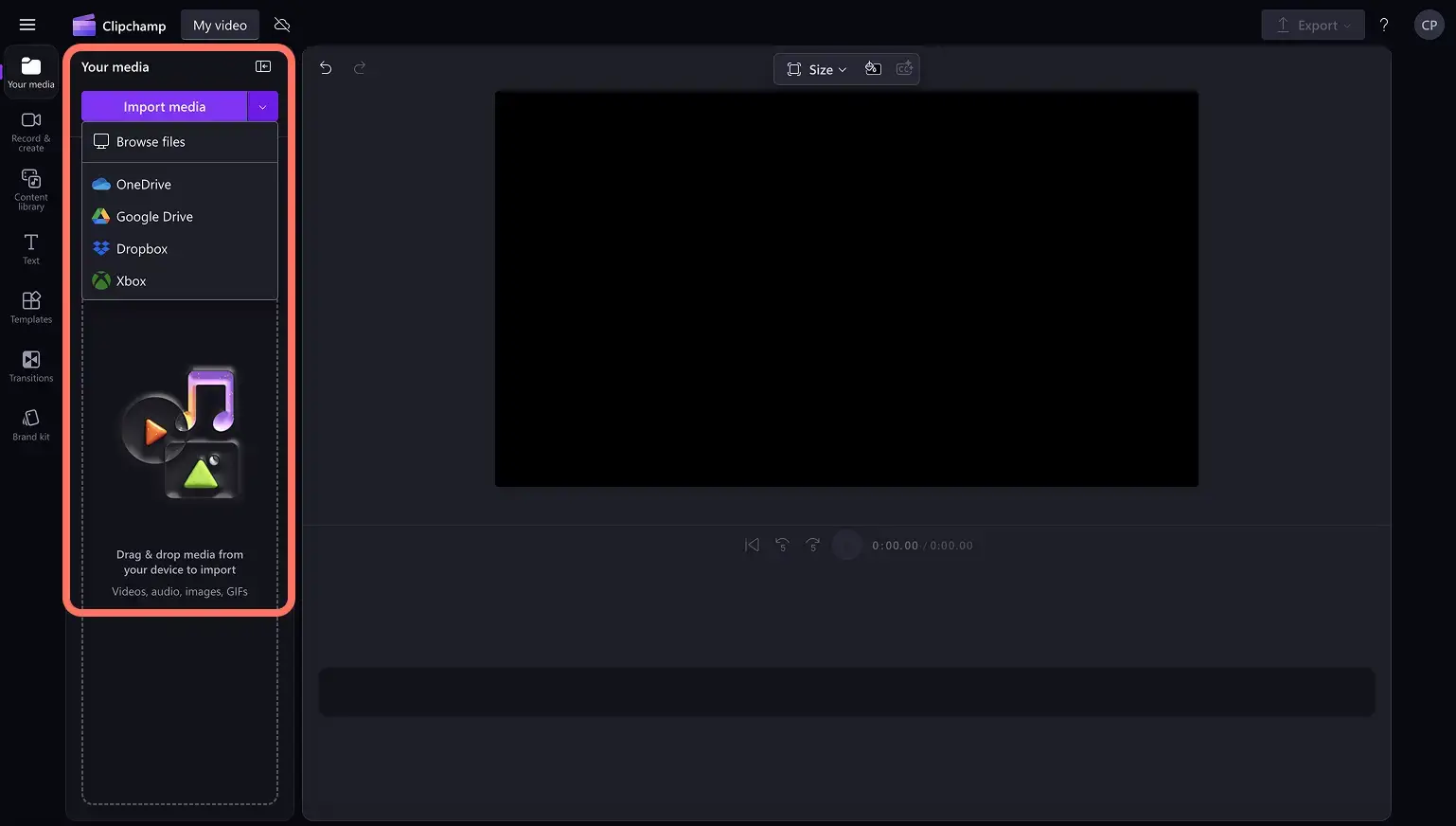
To import videos or audio, click on the import media button in the media tab on the toolbar. Browse computer files, or connect to OneDrive.
Royalty-free stock media is also available through the media library. Click on the content library tab on the toolbar, then the visuals drop down arrow, and then videos. Browse the different stock categories using the search bar or clicking on a specific folder.
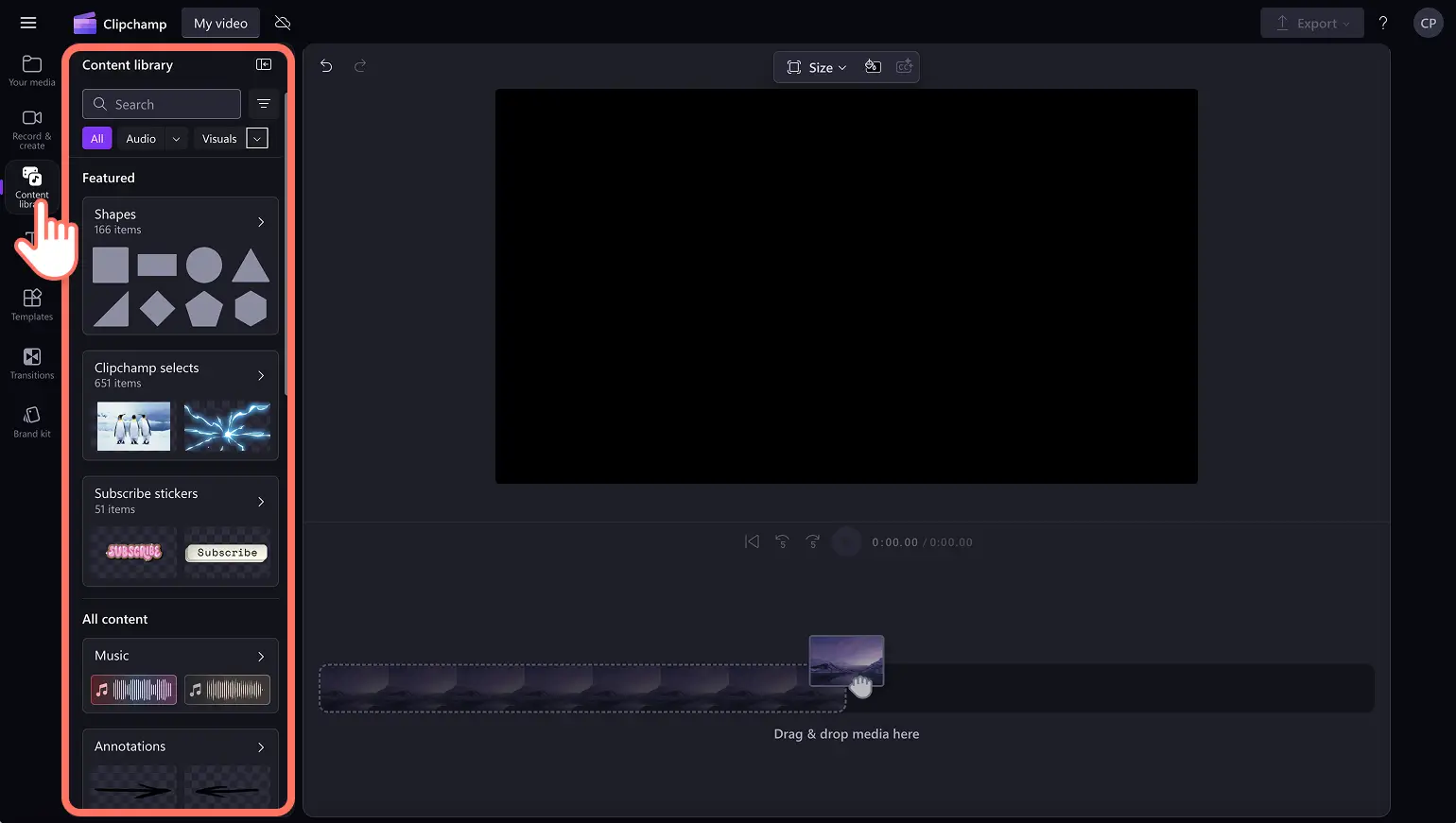
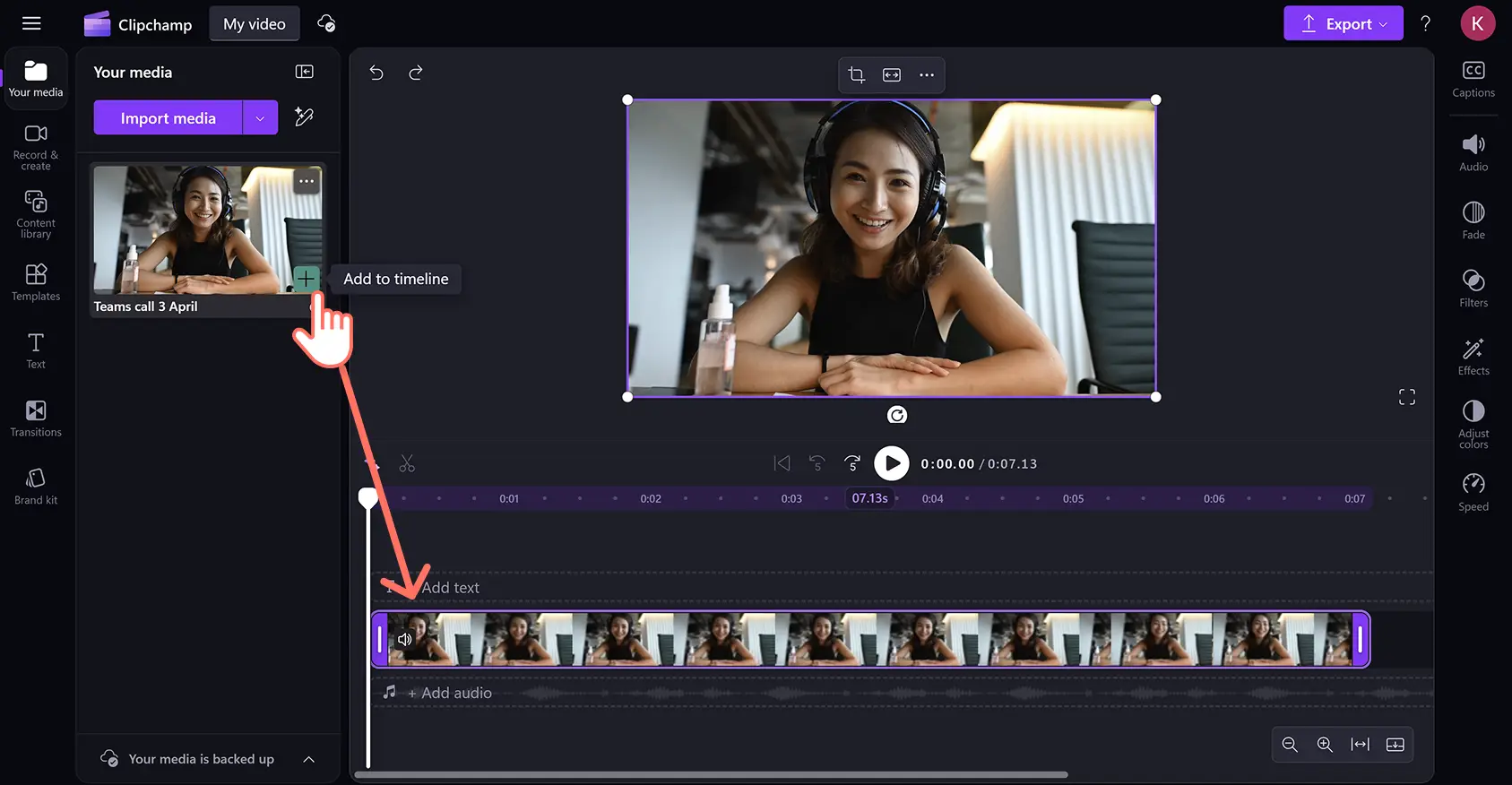
Drag and drop media onto the timeline to start editing.
Step 2. Edit the speed of videos
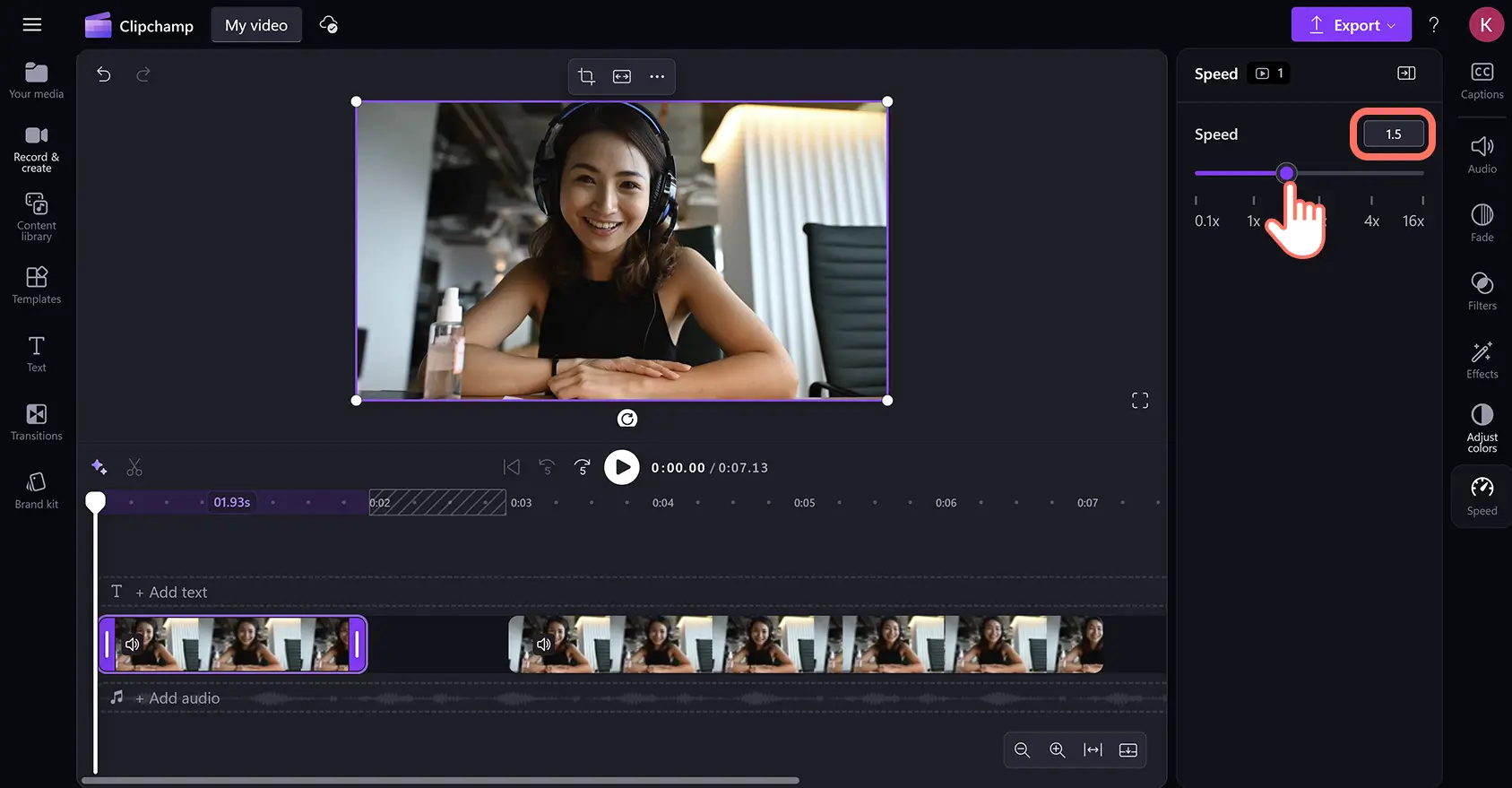
Click on the video on the timeline. Next, click on the speed tab on the property panel.
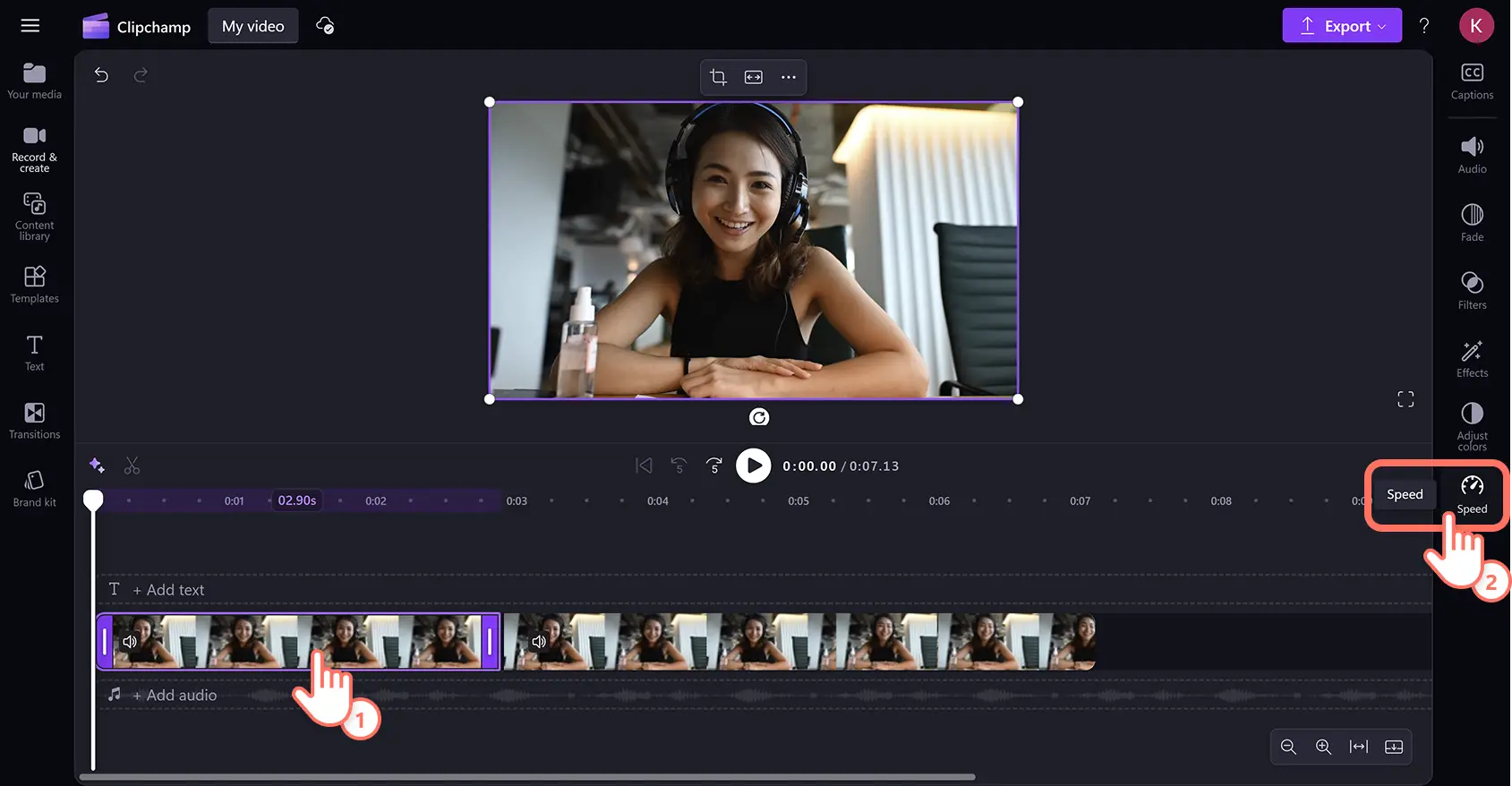
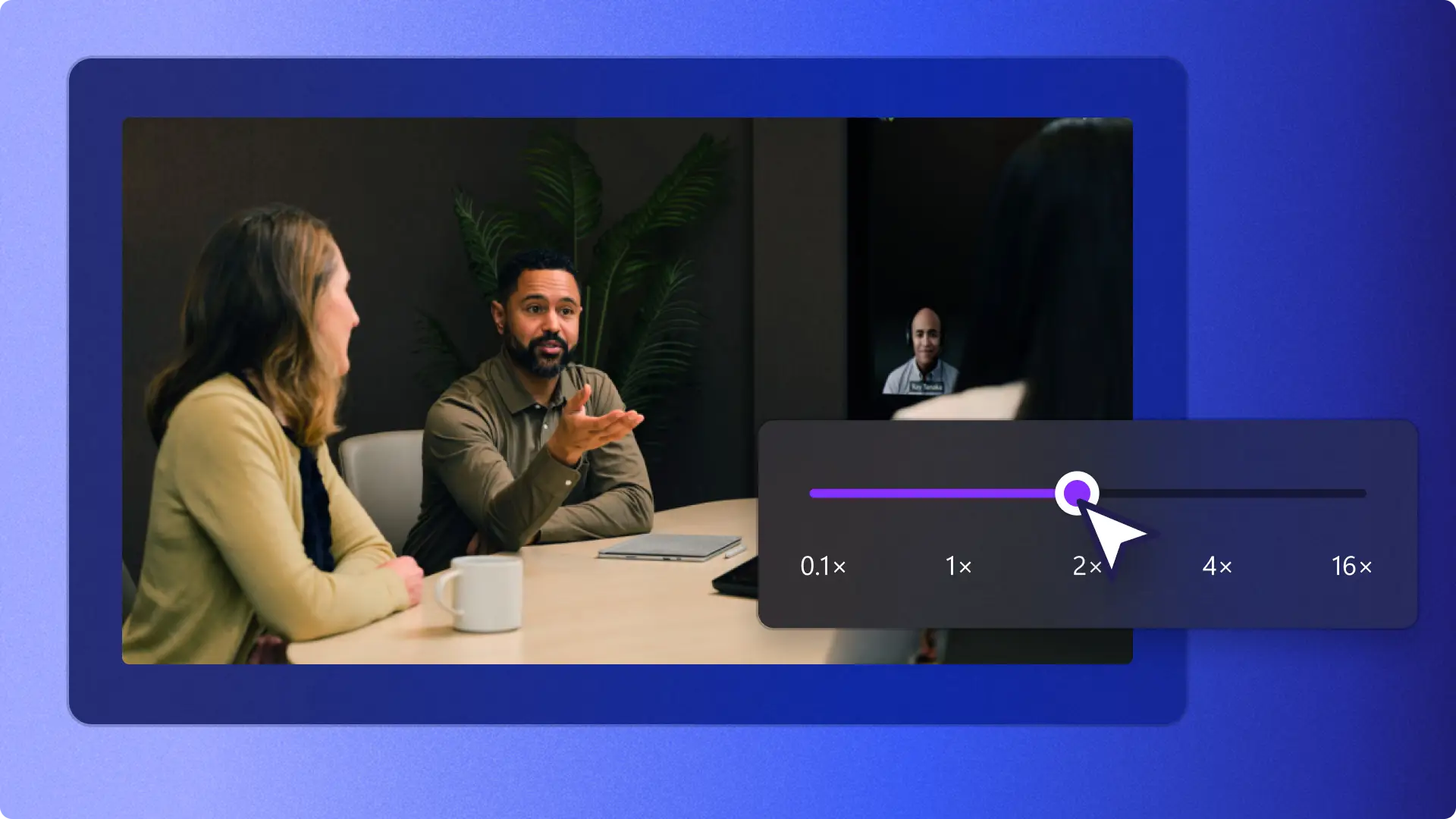
Using the speed selector, drag left to slow down the video or right to speed up the video. Adjust the playback speed from 0.1x to up to 16x using the slider or by entering the desired speed value directly.
Note: speed changes apply to the entire video clip on the timeline and affect the frame rate of the footage. The faster the speed, the shorter the video, and the slower the speed, the longer the video.
Step 3. Remove gaps between videos
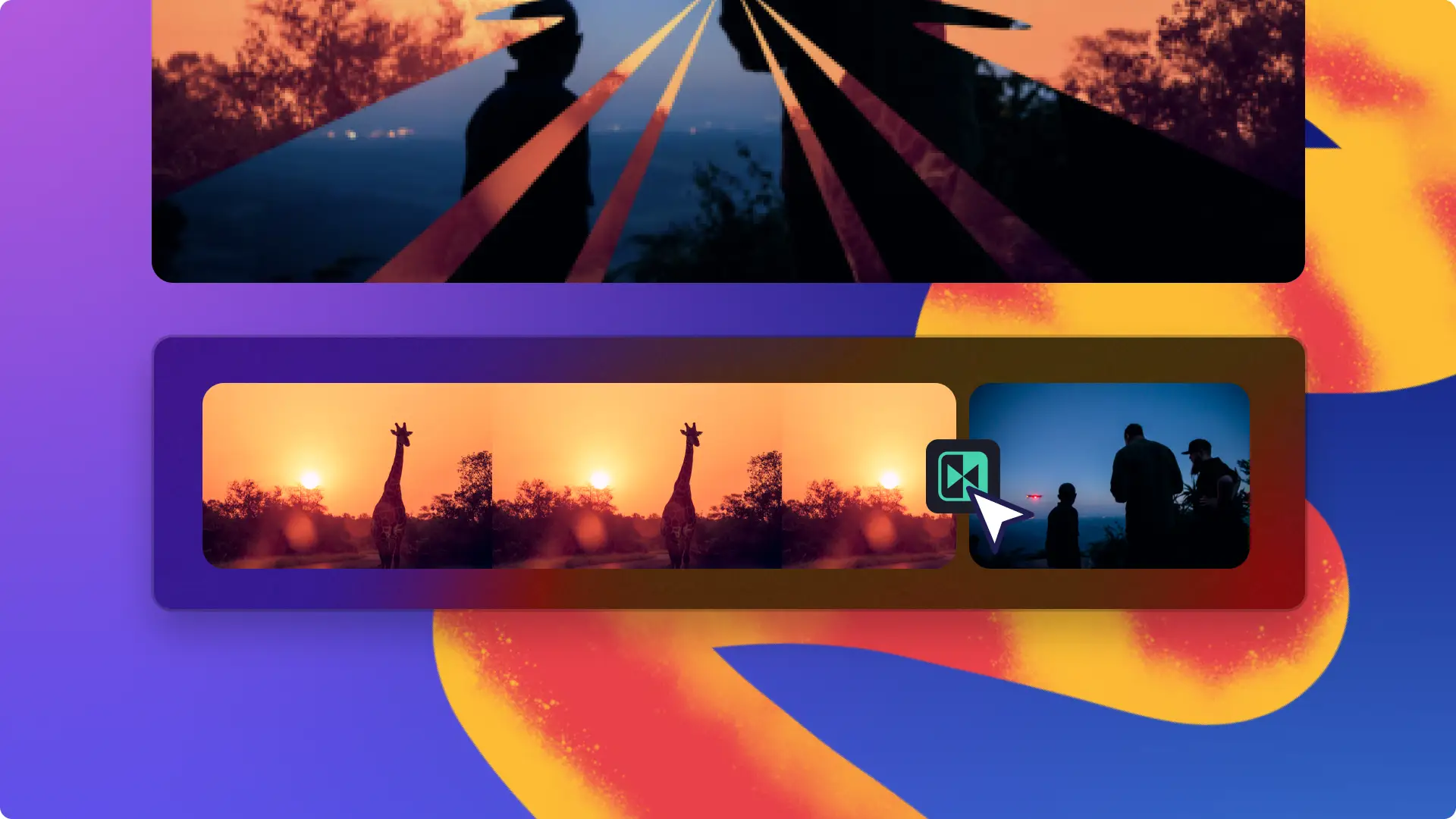
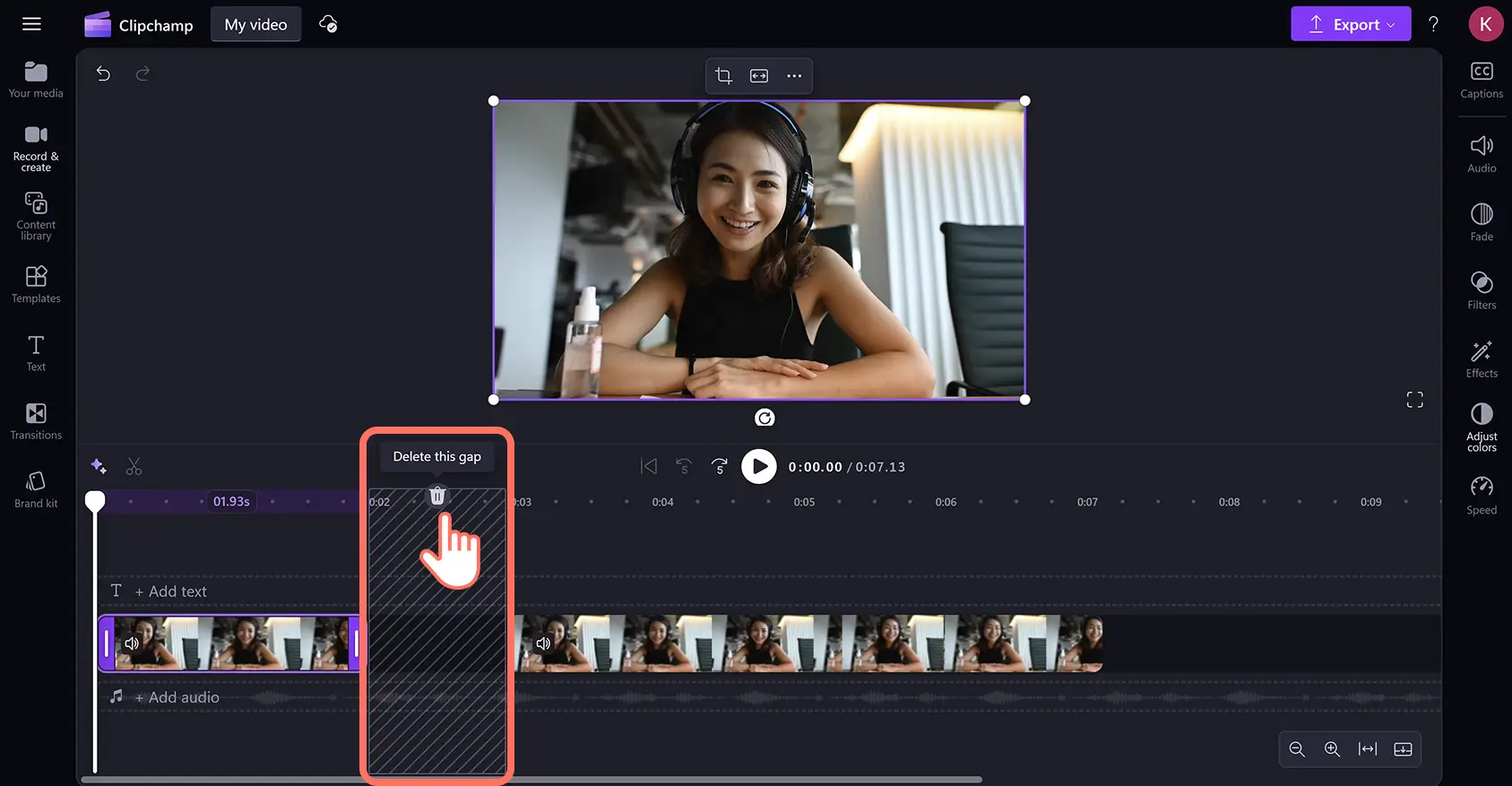
Sped up videos will create gaps on the timeline. To remove timeline gaps, click on the gap removal button to automatically close them. Videos will line up next to each other side by side. For more help, watch the speed controller video tutorial for step-by-step guidance.
Step 4. Preview and save videos
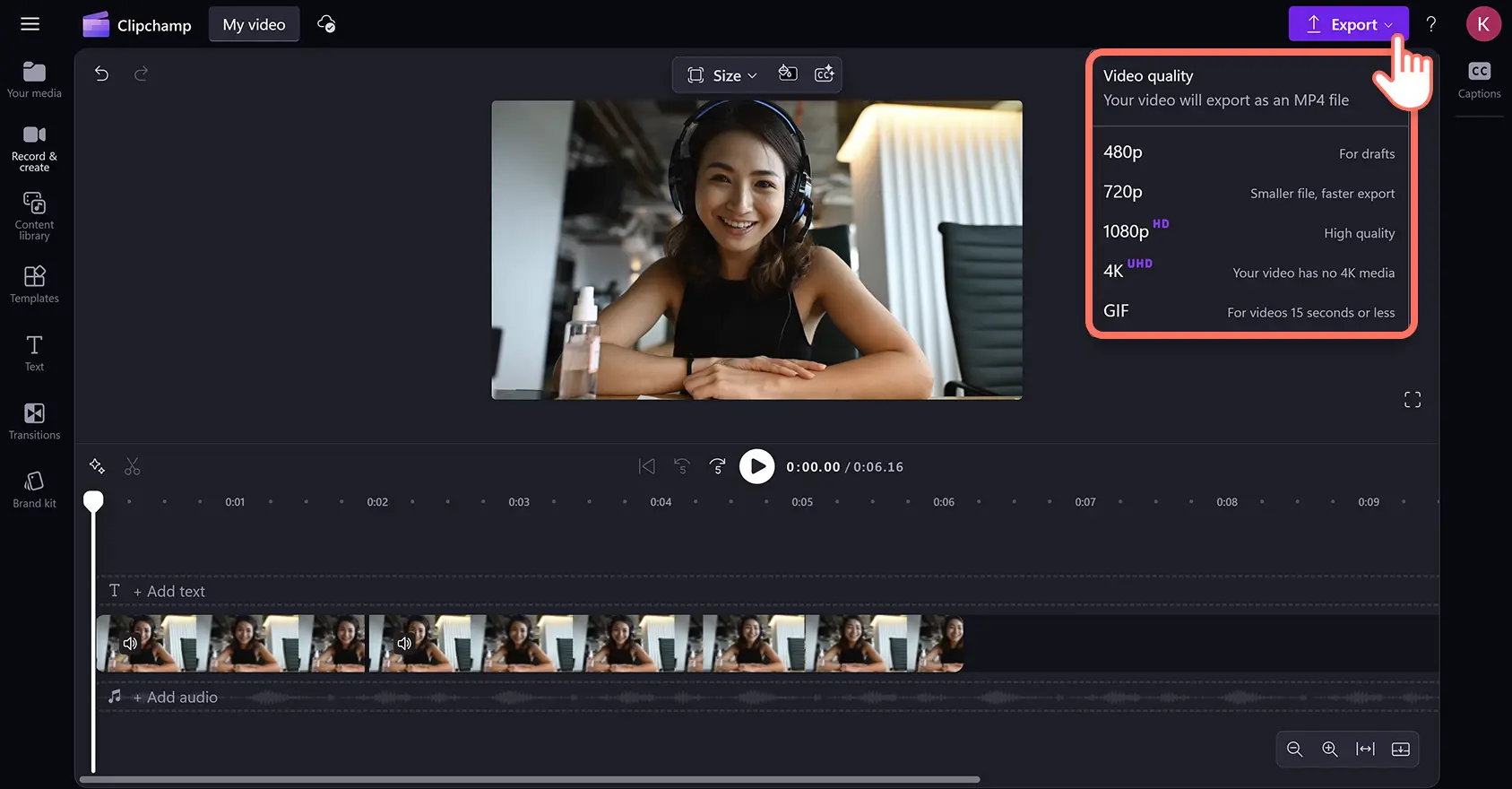
Before saving, make sure to preview by clicking on the play button. Next, click on the export button and select a video resolution.
How to undo video speed changes
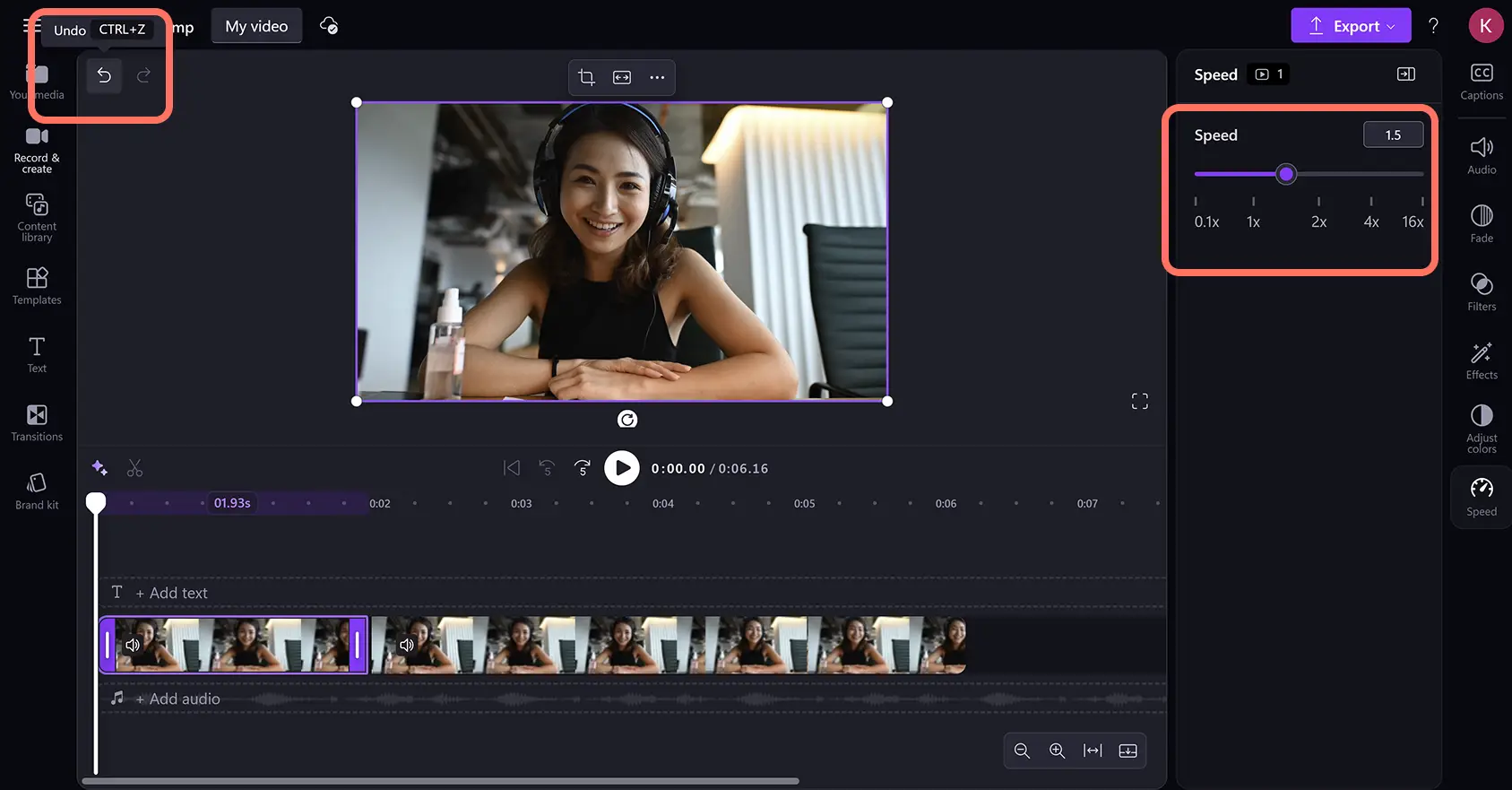
Undo any speed changes using the buttons within the video editor or keyboard shortcuts.
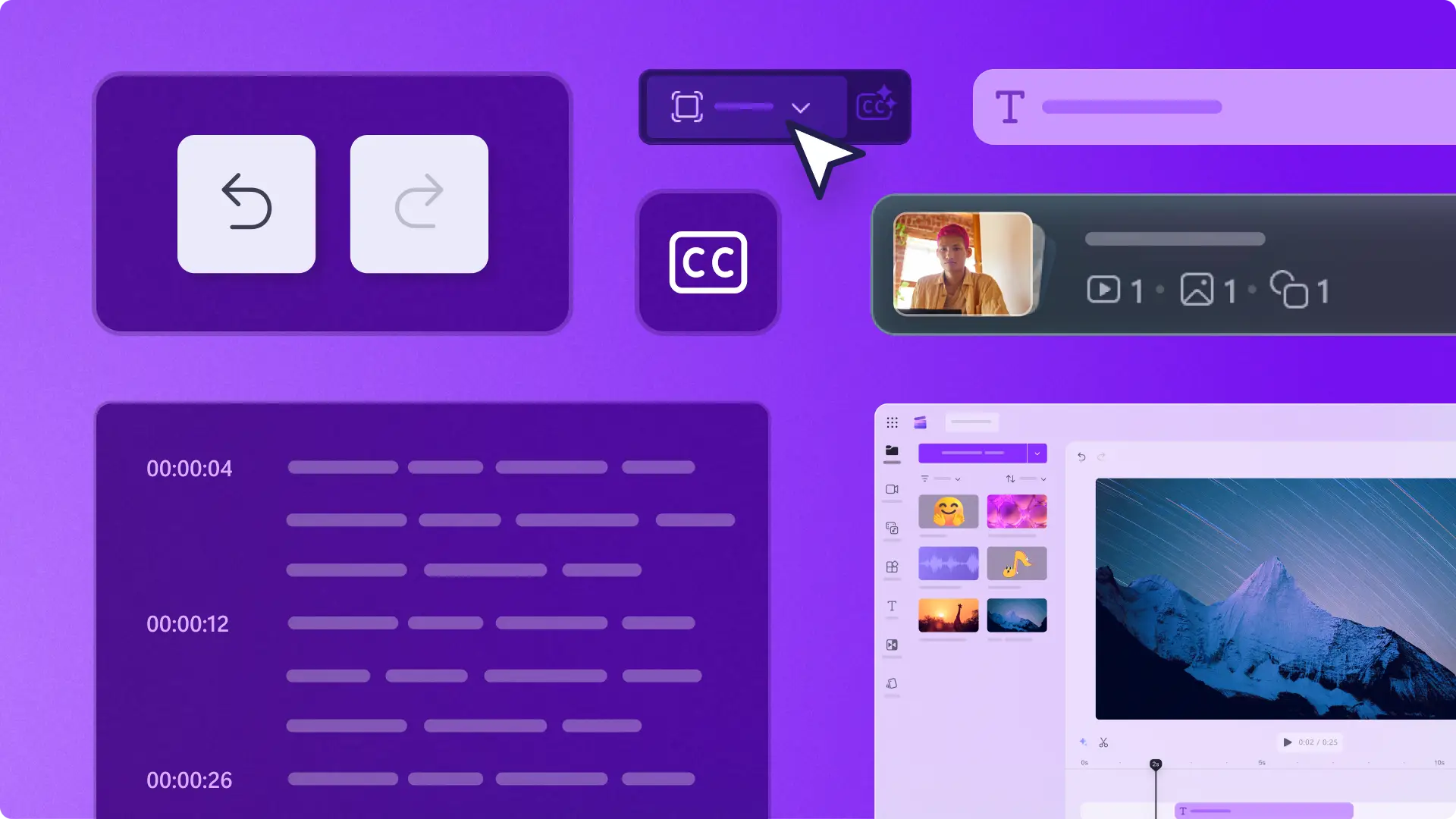
Click on the undo button to undo a change. Also, press command + Z (Mac) or control + Z (Windows) on the keyboard.
Click on the redo button to redo a change. Also, press command + Y (Mac) or control + Y (Windows) on your keyboard.
Alternatively, click on the asset on timeline, then press the delete key on your keyboard. Re-add the asset to the editing timeline to start over.
How to speed up and slow down video audio
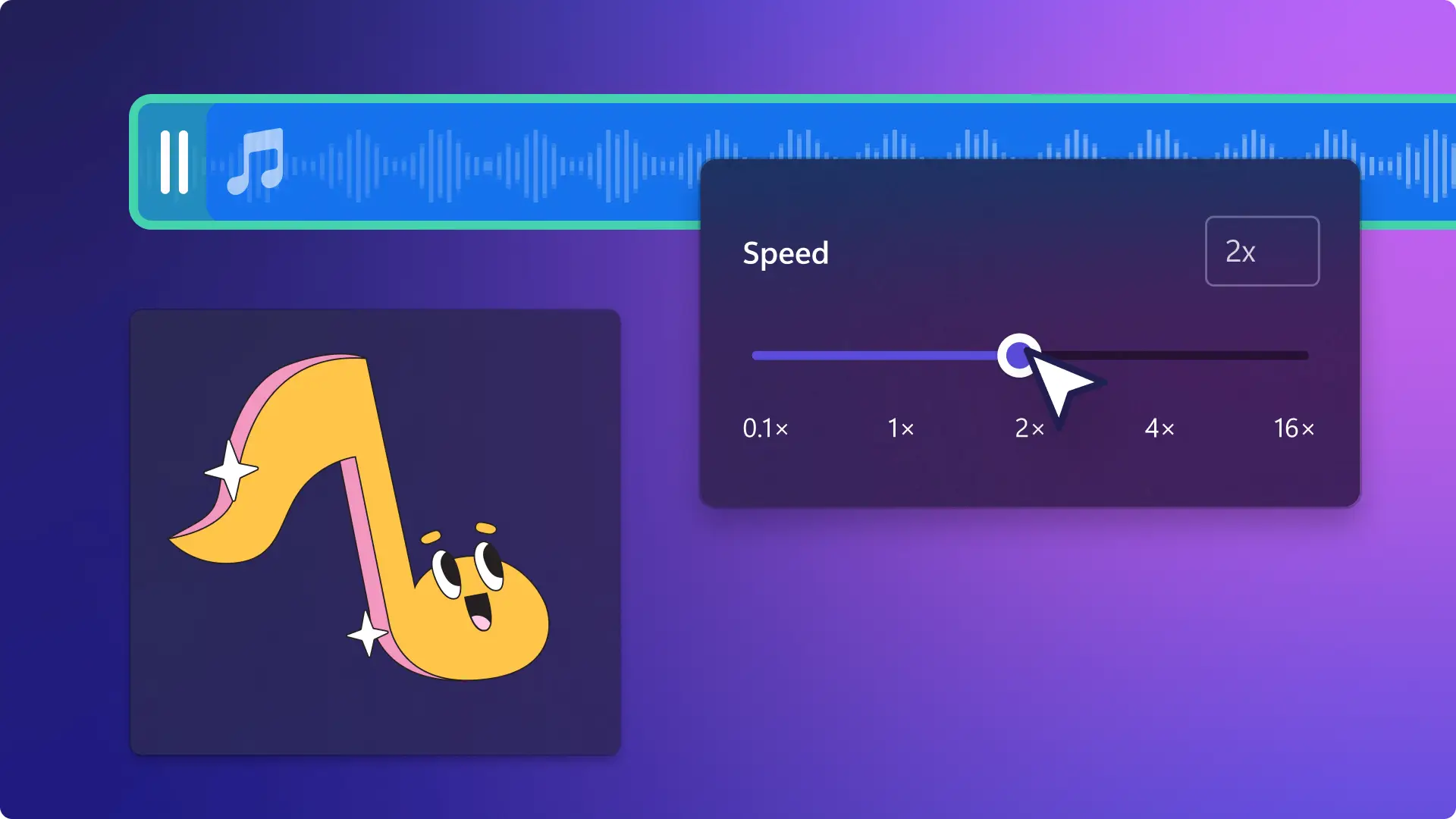
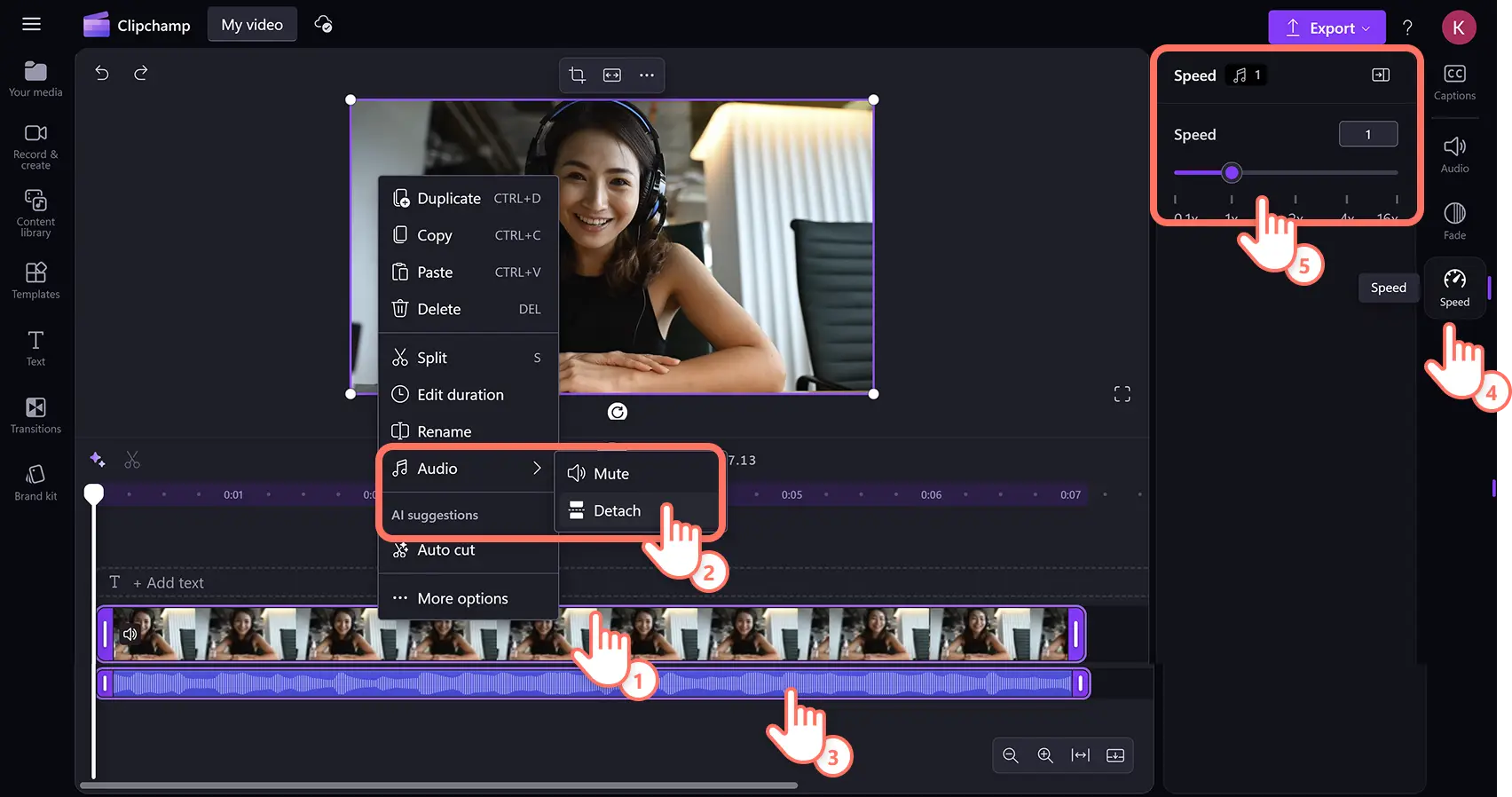
To speed up audio while keeping video at the same speed, adjust the audio speed as an individual asset by first separating video and audio into separate tracks. The audio speed changer is compatible with all audio files, including imported MP3 media assets.
Click on the video asset on the timeline.
Right-click then hover over the audio button, then select the detach option.
Click on the audio asset on the timeline.
Click on the speed tab on the property panel.
Adjust the speed controller or enter a numeric value.
Note: editing the speed of videos will also edit the length on the timeline. The faster the speed, the shorter the audio, and the slower the speed, the longer the audio.
Watch how to use the speed controller video tutorial
Six ideas to use speed to enhance video storytelling
Time-lapse videos: this is a go-to technique for travel creators, nature filmmakers, and lifestyle vloggers who want to show sunsets, cityscapes, or seasonal changes in a visually striking way. Speeding up footage condenses hours of real-world movement into fast motion that plays in just a few captivating seconds on screen. Increase clip speed to 4x or higher to achieve a smooth, cinematic time-lapse effect, using footage shot from a fixed angle or a moving camera.
Slow-motion gaming highlights: these are a game-changer for gaming creators looking to spotlight incredible plays, clutch shots, or hilarious fail moments in gaming videos and highlight reels. Simply move the speed slider to 0.25x or 0.5x to add a slow-motion effect. Gaming channels use this technique constantly to draw attention to the moments that matter most and give audiences time to appreciate the action.
Fast vlog cuts: day-in-the-life creators use speed adjustments to keep vlogs moving at an energetic pace from start to finish. Speeding up repetitive or transitional moments, such as commute shots, meal prep scenes, or getting-ready footage, keeps the story moving without losing any important details. Mixing fast-paced cuts with real-time moments gives the video a natural, dynamic rhythm that holds attention throughout.
Beat-matching musical videos: syncing speed changes to the beat of a song creates a polished, professional-looking edit that feels intentional and high-energy. Creators making lyric videos, brand reels, or highlight montages often use speed adjustments right before a drop or chorus to build excitement. Even small tweaks to clip speed can dramatically change how music and visuals work together on the timeline.
Speed through lengthy tutorials: speeding up less essential parts of a tutorial, such as waiting for an app to load, setting up equipment, or mixing ingredients, keeps the video tight and viewer-friendly. This approach is especially common in cooking, crafting, and tech content, where some steps take longer to complete than they do to explain. Combining fast-forwarded setup footage with normal-speed instruction keeps the focus on the most useful and engaging moments.
Fast-paced travel edits: these feel exciting and immersive, especially when speed is used to match the energy of the destination or activity. Adventure creators often speed up drone flyover footage, busy street scenes, or road trip clips to recreate the rush of being on the move. Adding slow-motion to specific moments, such as a sunrise, a wave, or a market crowd, creates contrast and keeps the viewer emotionally engaged throughout the edit.
Effortlessly achieve slow motion, time-lapses, and high-energy speed effects with the speed selector in Clipchamp video editor. For more video editing tips, check out how to split videos online for free, or explore how to add audio to videos like music and sound effects.
Start today with Clipchamp video editor or download the Microsoft Clipchamp app for Windows.
Frequently asked questions
Is the video speed controller free?
The speed controller is free for all Clipchamp video editor users. Check out the pricing page for more information on the different subscription options.
How to slow down video and not slow down audio?
Change the audio speed as a separate media asset to video by detaching the audio track in the editor first. Speed changes will only apply to assets when they are selected and highlighted on the timeline.
How to edit the speed of a GIF in Clipchamp video editor?
The video speed controller can edit any moving asset in the editor, such as videos, audio, SFX, GIFs, stickers, and more. The speed controller will not work on images or text.