Heads up! The screenshots in this article are from Clipchamp for work accounts and the same principles apply to Clipchamp for school accounts. Clipchamp personal account tutorials may differ. Learn more.
On this page
Transform productivity with audio-to-text in Microsoft apps. The AI-powered tools make it effortless to convert audio clips and voice recordings into text in real-time. The fast and secure feature is available right inside popular tools, such as Microsoft Word, Microsoft PowerPoint, Clipchamp video editor, and Microsoft Teams.
Turn audio into polished first drafts for documents and presentations, transcribe audio from lectures into text, or enhance video content with accurate subtitles in global languages. Discover five powerful methods to unlock new levels of efficiency with audio transcription in Microsoft 365 apps.
Method 1. Transcribe audio to text in Word
The dictate feature in Word can speed up document creation. Capture brainstorms and escape lengthy typing sessions with this audio-to-text converter. The feature is especially useful for individuals with mobility restrictions who find typing difficult. The transcription process is simple to use yet very powerful as it can also identify different speakers and create a transcript with labels and timestamps, saving future editing time.
How to use Dictate in Word to transcribe audio
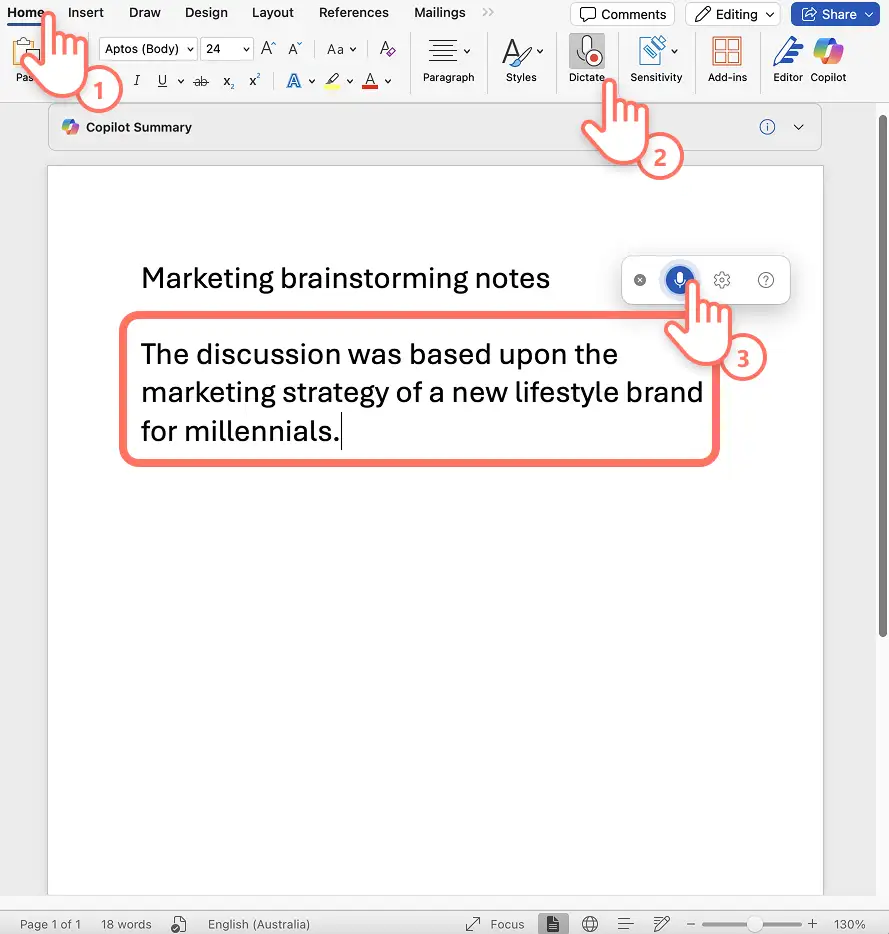
Open a new Word document in the Word app, or use Word online to get started.
Select the dictate icon on the home ribbon in Word.
Enable microphone permissions on the device, then restart Word.
Click the dictate icon to start recording. The icon will turn blue, and a timestamp will show the length of the recording.
Start speaking clearly and watch the audio get transcribed in the document in real-time.
Click the dictate icon again to stop recording.
Review the notes, adjust the document formatting and save the audio transcription.
Five ideas to use the audio to text converter in Word
Capture brainstorming session notes in real time so they can be rearranged into reports and solutions more quickly.
Transcribe lecture halls so the key points from the study material can be summarized into easy-to-learn notes.
Turn interview audio to text and speed up writing in the workplace or when creating journalism content.
Create meeting minutes for work by recording team discussions and generating accurate transcripts to share with stakeholders who couldn't attend.
Develop accessible study materials for students with learning differences by using text transcribe audio features to convert recorded lessons into written documents they can review at their own pace.
Feature notes
Dictate is only available to Office 365 and Microsoft 365 subscribers.
Users can also generate transcripts from audio files using the upload an audio file feature in Word for Microsoft 365 on Windows in Commercial Tenants.
Those who use a screen reader program such as Windows Narrator can also use a screen recorder to transcribe audio to text for additional accessibility support.
Method 2. Transcribe audio from voice recording in Clipchamp
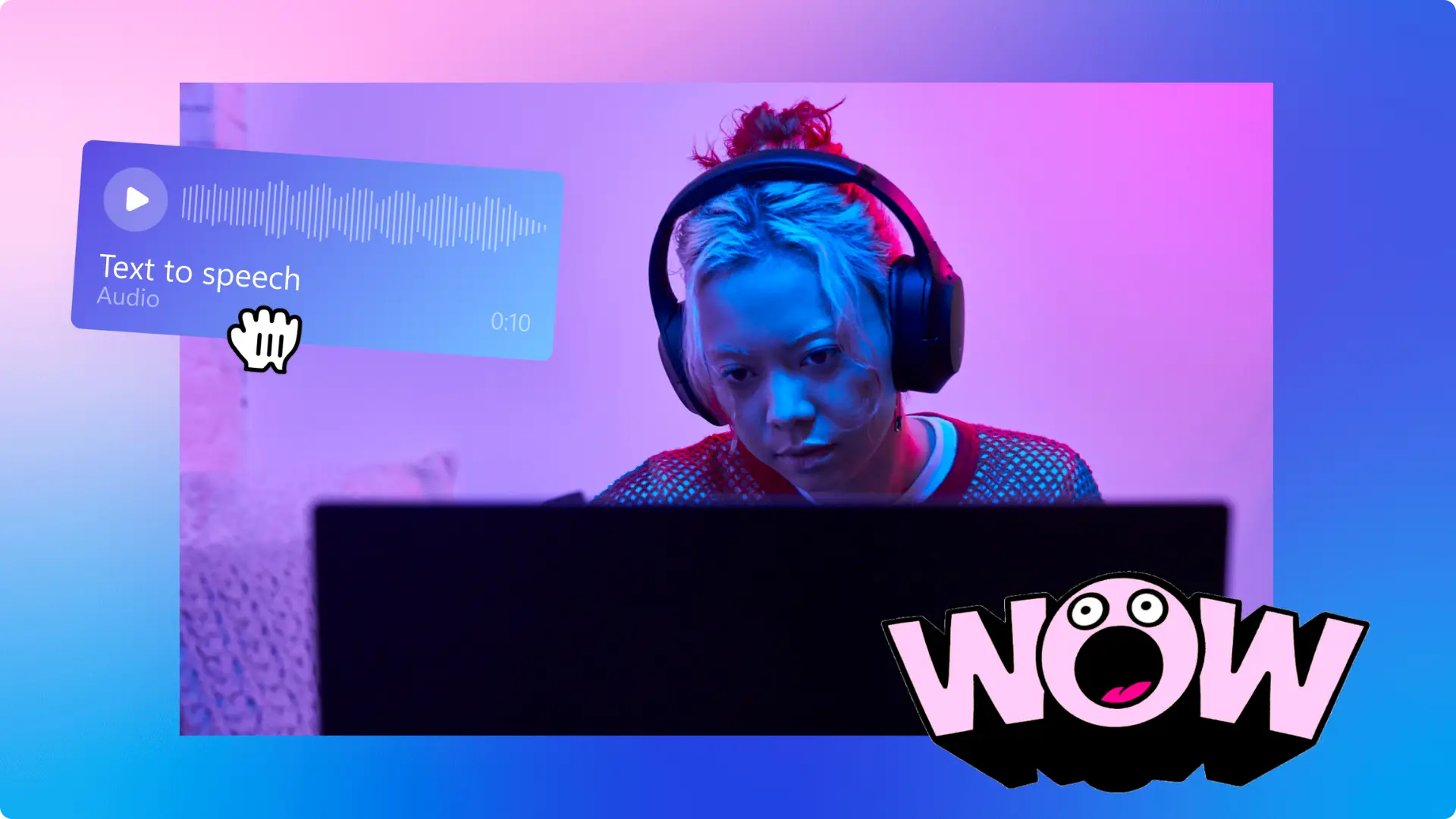
The online voice recorder in Microsoft Clipchamp lets anyone quickly create audio recordings for video voiceovers. Free and with guaranteed privacy, it can be paired with the autocaptions feature to generate subtitles and convert audio recordings into accurate transcripts in diverse languages.
How to transcribe voice recordings in Clipchamp
Create a new video at app.clipchamp.com or using the Microsoft Clipchamp Windows app on desktop.
Locate the record and create tab on the toolbar, then select voice recorder.
Allow microphone access in the popup window.
Choose the microphone source, do a mic test.
Click on the red button to start and finish the voice recording to appear on the timeline.
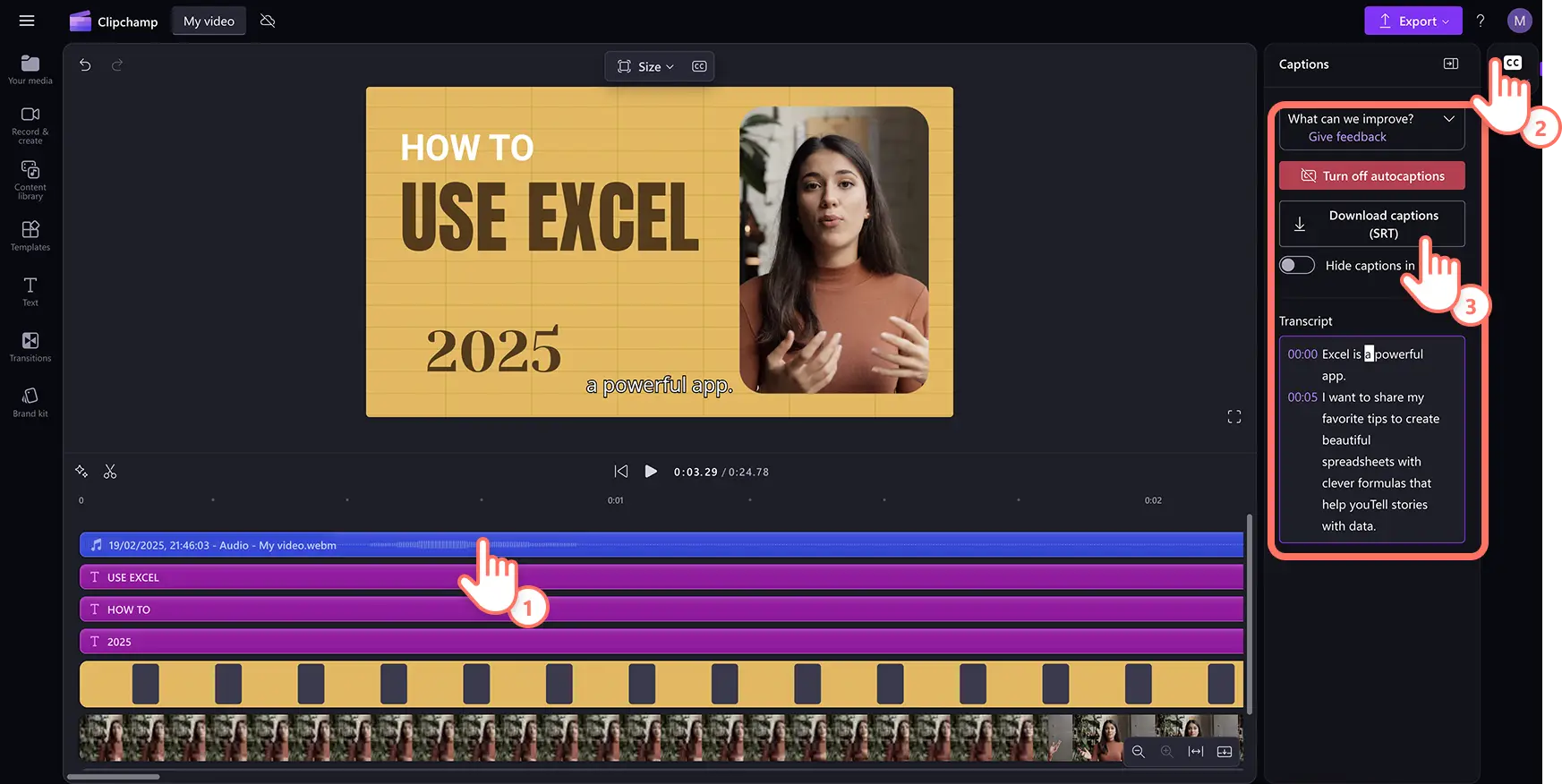
Select the audio asset on the timeline, then click on the captions tab on the property panel.
The smart voice detector will generate subtitles and a downloadable video transcript in .SRT format showing text and timestamps.
Five ideas to transcribe voice to text converter in Clipchamp
Record a personal voice track in a global language and generate subtitles in a preferred language.
Narrate video essays and slideshow videos to tell the story behind the images and accompany them with subtitles.
Make step-by-step instructions for a demo video and share it with accurate subtitles and a written transcript.
Create educational explainer videos for students by recording voice explanations over visual content and providing transcripts for learners who need text-based resources.
Produce training videos for employee onboarding with professional voiceovers and transcripts that new hires can reference during their learning process.
Feature notes
Audio transcription is free for all Clipchamp users, but voice recordings are limited to 30 minutes at a time so record multiple takes for longer voiceovers.
The audio transcripts can also repurposed as content for Word documents and other document needs.
Users can fix poor sound quality and reduce background noise in voice recordings with the noise suppression tool, ensuring more accurate transcripts.
Method 3. Transcribe audio from video in Clipchamp
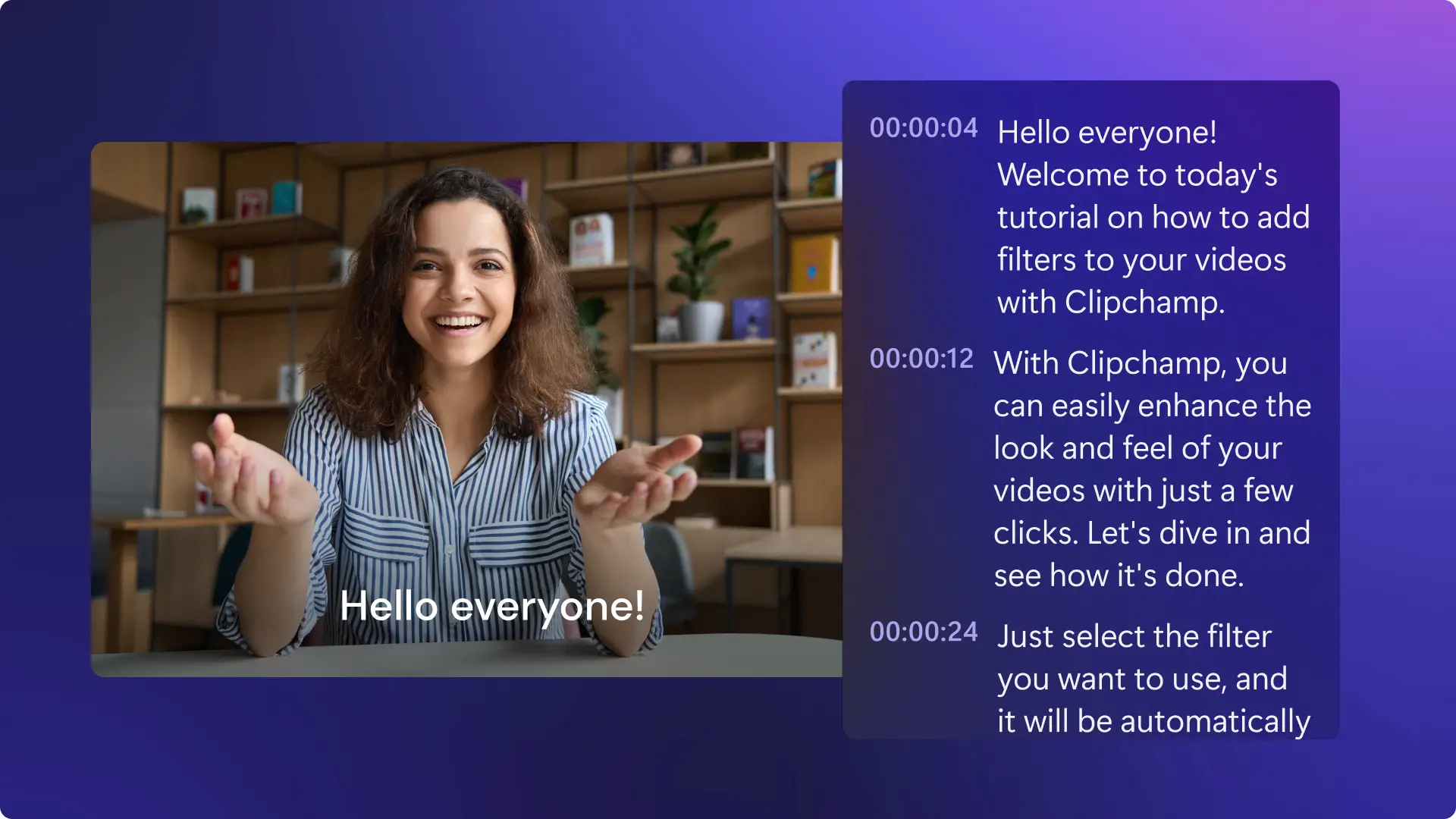
For users who need to transcribe a video into text, simply enable the auto subtitle generator in Clipchamp video editor to create accurate subtitles and a downloadable transcript in a few clicks.
How to transcribe video to text in Clipchamp
Create a new video in app.clipchamp.com or using the Microsoft Clipchamp Windows app on desktop.
Upload the video using the import media button in the your media tab on the toolbar to browse computer files or connect OneDrive for cloud storage access.
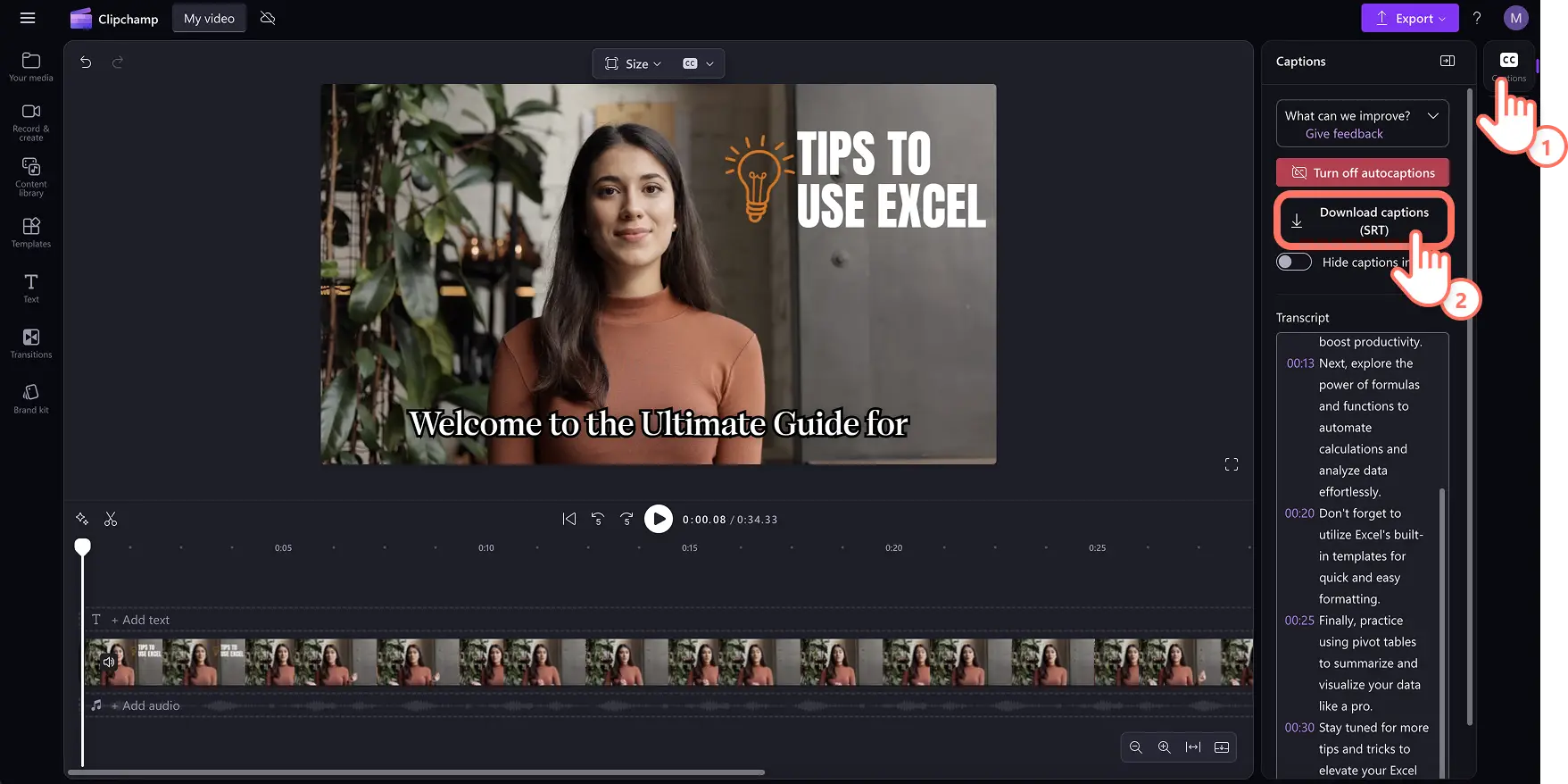
Add the video to the timeline, then select the captions tab on the property panel.
Select the audio language and check the box to filter profanity in the pop-up window.
Click on the transcribe media button to start creating captions for the video's audio.
Review the transcript along with the video timestamps and click on a specific word to rewrite it.
Download the video transcript using the download captions (.SRT) button and the file will automatically download to the device.
Five ideas to use AI video to text transcription in Clipchamp
Transform YouTube videos, Reels, and video podcasts into videos with stylish subtitles and reuse the transcript for video SEO needs.
Make inclusive training videos with text captions, audio descriptions, and sign language stickers, and repurpose the transcript for documents and emails.
Polish meeting clips with AI captions to make them easy to skim and review for teams, and attach the video transcript for accessibility.
Create lectures for online learning videos by adding captions to recorded classes and providing downloadable transcripts for note-taking and study.
Develop workplace safety and compliance videos with mandatory captions and transcripts to ensure all employees can access critical information from audio recordings, regardless of hearing ability or language proficiency.
Feature notes
Autocaptions and video transcription is free for Clipchamp users, but the generation time will depend on the user's internet connection and the length of the video.
Global languages are supported however only one language can be transcribed per video.
Video-to-text transcription is powered by Microsoft Automatic Speech Recognition so it's safe and accurate.
Method 4. Transcribe audio to slides in PowerPoint
Create content for your slides in just a few minutes with dictation in PowerPoint. This feature allows speech-to-text transcription online, creating a dynamic and efficient way to speed up the workflow and generate content to add to presentation placeholders and speaker notes.
How to convert audio to slides in PowerPoint
Create a presentation or open existing presentations using Microsoft PowerPoint.
Select the dictate icon from the home ribbon in PowerPoint.
Enable the mic using device settings and restart PowerPoint.
Turn on the dictate icon and start speaking to see the voice-to-text appear in the slides.
Edit the audio transcription and adjust the placement across slides.
Five ideas to use audio to text converter in PowerPoint
Record initial ideas and transcribe them to create an outline for slides, then refine it into polished sentences using Microsoft Copilot in Microsoft 365.
Transcribe audio into text to extend slides so viewers can review asynchronously, and in an accessible manner.
Capture key insights for each slide of a lengthy presentation and use the transcript to create comprehensive speaker notes for delivery.
Build classroom presentations by speaking content ideas aloud and converting them into slide text for lessons.
Prepare business pitch decks efficiently by dictating key talking points and company data that can be quickly formatted into professional slides for investor meetings.
Feature notes
Fix any transcription mistakes in real-time using the keyboard while the dictation feature is running.
Speak out punctuation marks to add to the transcript, saving editing and refining time.
The AI-powered transcription doesn't store any voice data so it's safe and secure.
Method 5. Transcribe meeting recordings in Teams
Convert meeting audio into notes automatically with the transcribe feature in Microsoft Teams. Share the transcript with stakeholders or supercharge productivity after meetings with handy action items for the team.
How to generate a transcript in Microsoft Teams
Start a Teams meeting by selecting the + new meeting button in the Microsoft Teams app.
Select the record and transcribe option from the more actions or three dots in meeting controls to start recording a meeting.
Once the meeting recording is over, the meeting audio will be converted to text and saved in the meeting details.
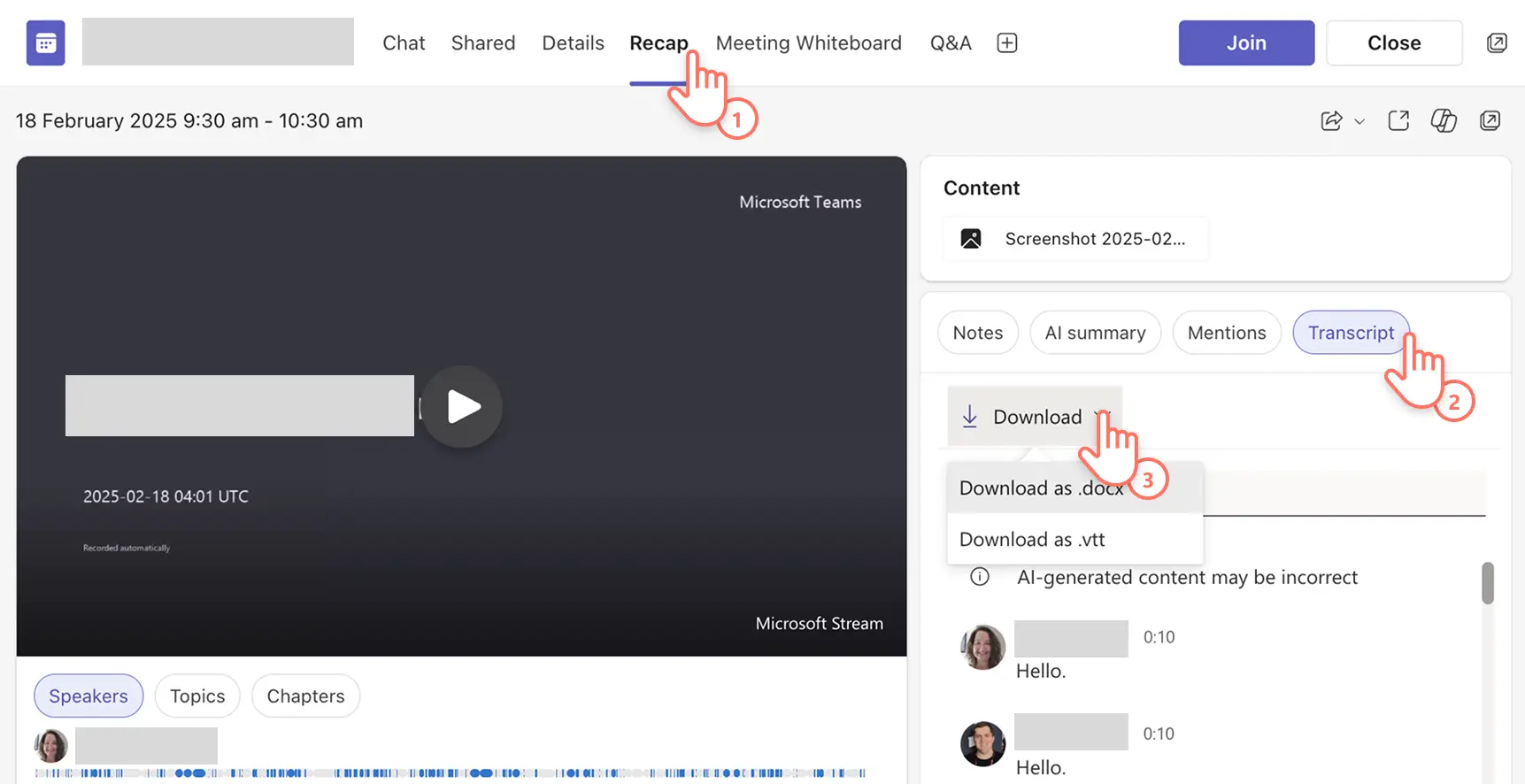
Navigate to the meeting recap tab to find the video recording of the meeting, AI-generated notes, as well as the AI-generated transcript with timestamps and speaker names.
Select the transcript button, choose download and select the transcript file format as .docx or .vtt file.
The meeting transcription will save to the device.
Five ideas to use meeting audio transcriptions in Teams
Generate a transcript and find a list of milestones, follow-up tasks, or decision-making items so meeting attendees and stakeholders stay in the loop.
Transcribe demo and training meetings to develop written guides and handouts for clients and new employees to refer to after the meeting.
Convert meeting recordings into text, find interesting talking points and quotes then repurpose the content to fuel blog posts and corporate video ideas.
Record parent-teacher conferences and virtual learning calls to provide families with a written summary to reference when supporting learning at home.
Document client consultation calls by transcribing conversations to create detailed records of project documentation, billing purposes, and future notes.
Feature notes
Ensure the transcription language matches the language spoken in the meeting to ensure the transcript will be accurate.
Request IT admins and meeting organizers to allow recording and transcribing permissions for the Teams meeting.
Find meeting recordings and transcripts saved to OneDrive for business for easy access.
Get started in any productivity app in Microsoft 365, or discover more accessibility tools embedded in Microsoft to help users achieve more.
Continue learning about creating videos for work like how to create impactful videos by recording a PowerPoint, or time-saving tips like how to summarize a video with AI.
Get started with Clipchamp video editor or download the Microsoft Clipchamp Windows app.
Frequently asked questions
Can Microsoft Copilot transcribe audio using AI?
Microsoft 365 Copilot can transcribe and translate audio recordings, helping users streamline tasks and enhance productivity with the power of AI.
What audio file formats can I transcribe in Microsoft?
Microsoft transcription services across Word, PowerPoint and Clipchamp video editor currently support .wav, .mp4, .m4a, .mp3 audio formats.
Can I transcribe a screen recording in Microsoft?
Accessibility is a key priority at Microsoft, so users who use screen reader programs can also transcribe audio to text using Microsoft Word online.